How to Tell if Someone Is Remotely Accessing Your Mac
Open System Settings > General > Sharing and see what's switched on. Then check your menu bar and run who in Terminal. Those three checks cover most remote access on a Mac.
Macky puts your Mac's terminal and screen on your iPhone, so we care about what can connect to a Mac. These checks apply to any remote access.
Look for a sharing indicator in the menu bar
Several sites report a screen-sharing icon in the menu bar during a session. Clicking it shows who is connected and lets you end the session. Descriptions of the icon vary, so look for any icon you don't recognize.
You may also see "Your screen is being observed" in the menu bar or on the lock screen. It often appears when Screen Sharing is on or an app has screen access. MacPaw says it isn't always shown during real remote access, so don't rely on it alone.
Check the Sharing settings
Go to Apple menu > System Settings > General > Sharing. You may need to scroll down. Look at these three toggles:
| Setting | What it allows | Port (Apple) |
|---|---|---|
| Screen Sharing | Others on your network can view your desktop | Port 5900/TCP |
| Remote Management | Others connect with Apple Remote Desktop | Ports 3283 TCP/UDP and 5900/TCP |
| Remote Login | Others connect over SSH and SFTP | Port 22/TCP |
Turn off any you don't use. For the ones you keep, click the Info button and set "Allow access for" to "Only these users". Also check "Anyone may request permission to control screen" under Screen Sharing. See Apple Remote Desktop vs Screen Sharing for the differences.
Control which devices can reach your Mac
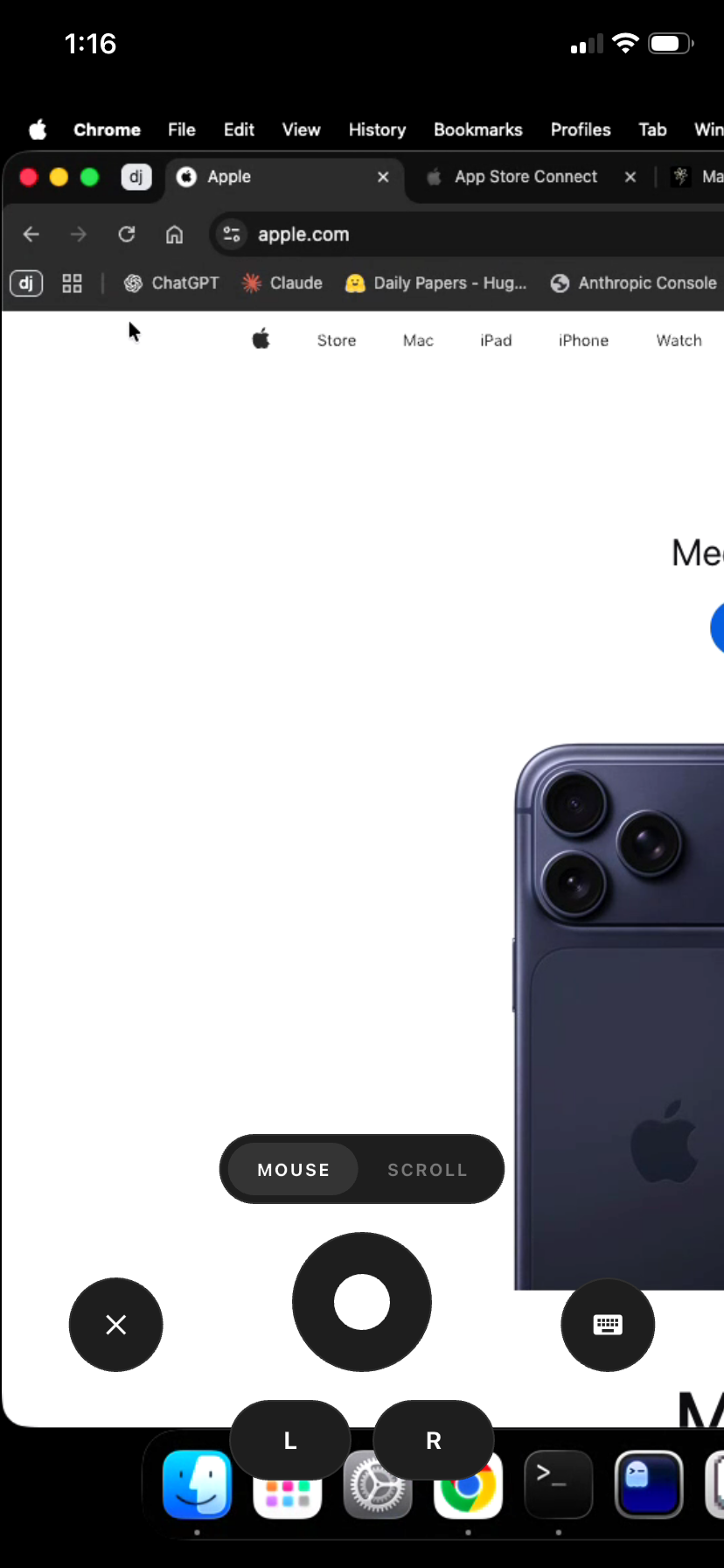
Macky gives you your Mac's terminal and screen on your iPhone. It's end-to-end encrypted, and your network needs no open ports.
Your Mac sits behind a master password. Each new iPhone has to be approved on the Mac before it can connect. Is Macky Safe? covers the details.
Run a quick check in Terminal
Third-party guides suggest two standard Unix commands. Apple doesn't document them for this purpose. Use who to list logged-in sessions:
whoUse lsof -i to list open network connections:
lsof -iLook for connections you don't recognize. screensharingd is the native Screen Sharing process. Activity Monitor's Network tab, sorted by bytes sent, shows the same kind of activity. If you SSH into your own Mac, expect to see yourself.
Review which apps can see or control your Mac
Open System Settings > Privacy & Security > Screen & System Audio Recording. On macOS 13 the pane is called "Screen Recording". Turn off any app you don't know.
Then open the Accessibility pane. Apple describes it as letting apps run scripts and system commands to control your Mac. Remove anything unfamiliar.
What to do if something looks wrong
- Turn off Screen Sharing, Remote Management, and Remote Login if you don't use them.
- Set access to "Only these users" for any you keep.
- Remove unknown apps from Screen & System Audio Recording and Accessibility.
- Change your Mac account password.
FAQ
How can you tell if someone is remotely accessing your Mac?
Open System Settings > General > Sharing and see which of Screen Sharing, Remote Management, and Remote Login are on. Then check the menu bar for a sharing indicator and run who in Terminal.
What does Remote Login mean on a Mac?
Remote Login lets other computers connect to your Mac over SSH and SFTP. Apple lists port 22/TCP for it. You can limit it to specific users in the Info button's "Allow access for" pop-up.
Should remote access be on or off?
Turn it off if you don't use it. If you do use it, set access to "Only these users".
What are the disadvantages of using remote desktop?
Every remote service you switch on is another way to reach your Mac, and each needs its own settings checked. Screen Sharing and Remote Management can't both be on at once.
Related Guides & Comparisons
Try Macky
Connect to your Mac terminal from your iPhone.