Gemini CLI From Phone: 3 Ways That Work (2026)
Gemini CLI has no official phone mode. It runs as a local process, so the simplest setup is to run it on your Mac and open that terminal from your iPhone.
Macky does that: it puts your Mac's terminal on your iPhone, so a Gemini CLI session keeps running on the Mac while you check it from anywhere.
Check your sign-in method first.
Your Options for Gemini CLI From a Phone
| Method | Phone | Where Gemini CLI runs |
|---|---|---|
| Macky terminal | iPhone | Your Mac |
| Termly | iPhone and Android | Your computer |
| Termux | Android | The phone itself |
Two feature requests for built-in remote control exist on the Gemini CLI GitHub. Issue #22559 was closed as not planned. Issue #21559 describes the tool as running "only as a local process."
Check Your Sign-In Before Anything Else
Google says Gemini CLI stops serving free tier individual accounts and Google AI Pro and Ultra subscribers on June 18, 2026. Enterprise users with Gemini Code Assist licenses and API key authentication are unaffected.
Those sign-ins stop working after that date. Pick one of these instead:
- API key auth
- An enterprise Code Assist license
- Antigravity CLI
Antigravity CLI is a different tool. Our Antigravity remote session post covers its sign-in quirks.
Run Gemini CLI on Your Mac
Install Gemini CLI on your Mac with npm:
npm install -g @google/gemini-cliHomebrew works too:
brew install gemini-cliThen start it in a project folder:
geminiCheck on Gemini CLI From Your iPhone
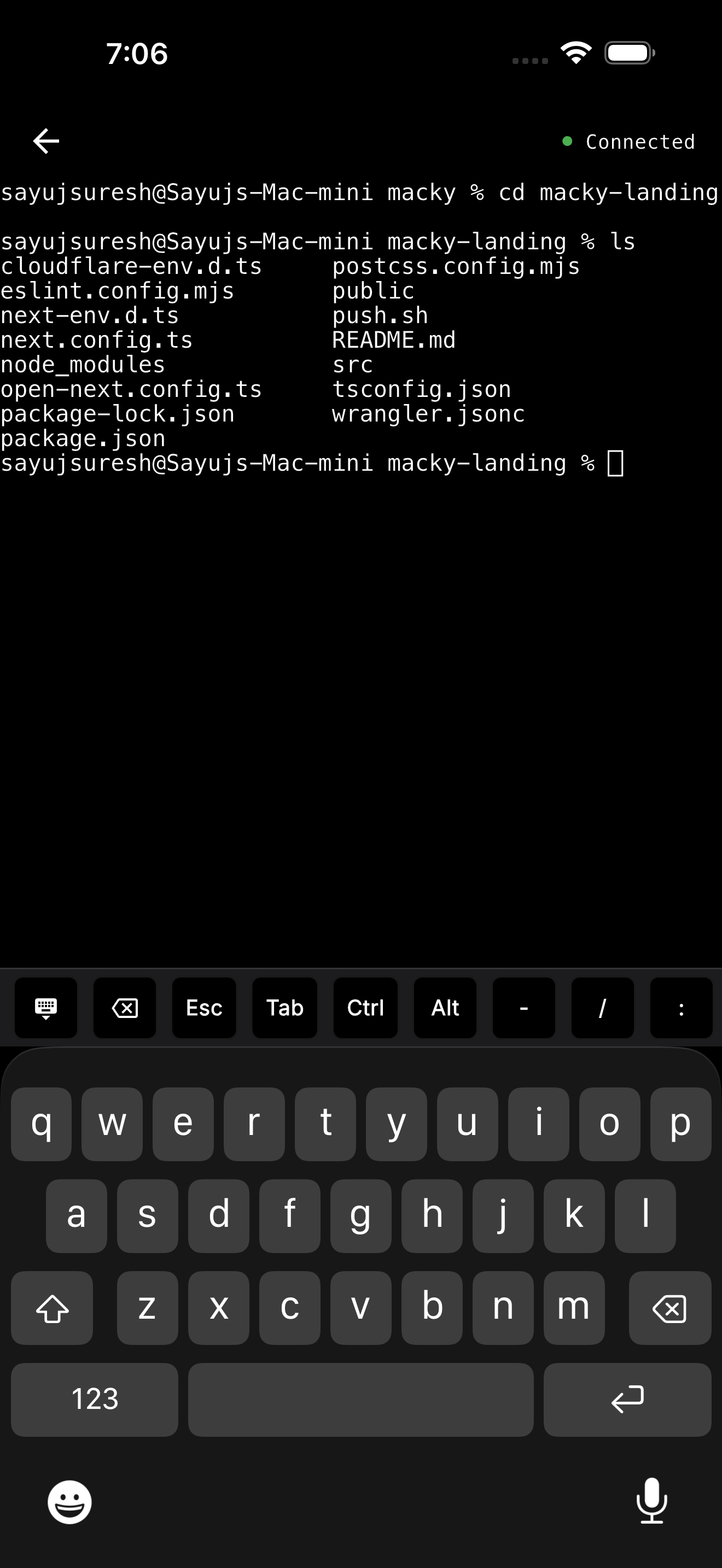
Macky opens a real shell session on your Mac from your iPhone, so you can run gemini there like you would at your desk.
Start a session, detach when you leave, and reattach later. The key bar gives you Esc and Tab. It also has Ctrl and the arrow keys for answering prompts. Voice typing runs on the iPhone.
The connection is end-to-end encrypted WebRTC with no open ports. A master password protects the Mac, and each new iPhone must be approved on the Mac. Turn on the keep awake switch or closed-lid mode so the Mac stays reachable.
Termly for Android and iPhone
Termly is a free CLI plus a mobile app. Its site lists Gemini CLI among the supported tools on iOS and Android. Install the CLI with npm install -g @termly-dev/cli, then scan a QR code to pair. It uses AES-256-GCM end-to-end encryption, and its README says one mobile device per session.
Termux on Android
Termux lets you run the CLI on an Android phone directly. A normal install can fail while building a native module. One community guide gets around it:
pkg install nodejs python make clang && npm install -g @google/gemini-cli --ignore-scriptsThat fix comes from a single blog post, so treat it as a workaround.
FAQ
How do I take Gemini from my phone?
For the Gemini CLI, there's no official phone app. The CLI runs as a local process on a computer, so the usual route is to run it on your Mac and open that terminal from your iPhone. The regular Gemini mobile app is a separate product.
Does Gemini have a CLI app?
Yes. Gemini CLI is Google's open-source AI agent for the terminal. Install it with npm install -g @google/gemini-cli or brew install gemini-cli. It's a command-line tool and has no app of its own.
How do I integrate Gemini with my phone?
Google doesn't offer a native phone integration for Gemini CLI. A feature request for remote control (issue #22559) was closed as not planned. Use a terminal on your Mac that you reach from your phone, or a third-party tool like Termly.
How to use CLI on Android?
Install Termux and run the CLI on the phone itself. The install can fail on a native module build. One community guide fixes it with npm install -g @google/gemini-cli --ignore-scripts. Another option is to run Gemini CLI on a computer and connect from your Android phone with a tool like Termly.
Related Guides & Comparisons
Try Macky
Connect to your Mac terminal from your iPhone.