Approve Claude Code From Your Phone: 3 Ways (2026)
You can approve Claude Code permission prompts from your phone in three ways. Use Remote Control, a hook that sends push buttons, or the terminal on your Mac.
Macky puts your Mac's terminal on your iPhone, so it covers the third way.
Three Ways to Approve From Your Phone
| Route | Where you answer | What you need |
|---|---|---|
| Remote Control | Claude app on iOS or Android, or claude.ai/code | A supported Claude plan and the same account on both devices |
| Hook plus ntfy | Push notification buttons | Node.js 18 or later and the ntfy app |
| Terminal on your Mac | A shell session on your iPhone | Claude Code running in a session on your Mac |
Route 1: Remote Control
Remote Control continues a local Claude Code session from the Claude mobile app or claude.ai/code. Start it from your Mac:
claude --remote-controlIf a session is already running, type /remote-control instead. Then open the Claude app with the same account and organization you use in the terminal.
For a push when Claude Code needs you, allow notifications in iOS. Then turn on push notifications in /config.
Pro, Max, Ultra, Team, and Enterprise plans work. API keys aren't supported. On Team and Enterprise, an Owner has to enable the Remote Control toggle in Claude Code admin settings first. If it's off, you'll see "Remote Control is disabled by your organization's policy". For fixes, see Claude Code Remote Control Not Working. For full setup, see Claude Code Remote Control: Setup, Limits and Fixes.
Route 2: A Hook and ntfy Push Buttons
The open-source project claude-remote-approver uses a PermissionRequest hook. When Claude Code asks to run a Bash command or write a file, the hook sends a push through ntfy.sh. The notification has Approve, Always Approve, and Deny buttons.
It needs Node.js 18 or later and the ntfy app on your iPhone. Check the README for install steps.
Answer the Prompt in Your Mac's Terminal
Run Claude Code in a terminal on your Mac and answer its prompt from your iPhone.
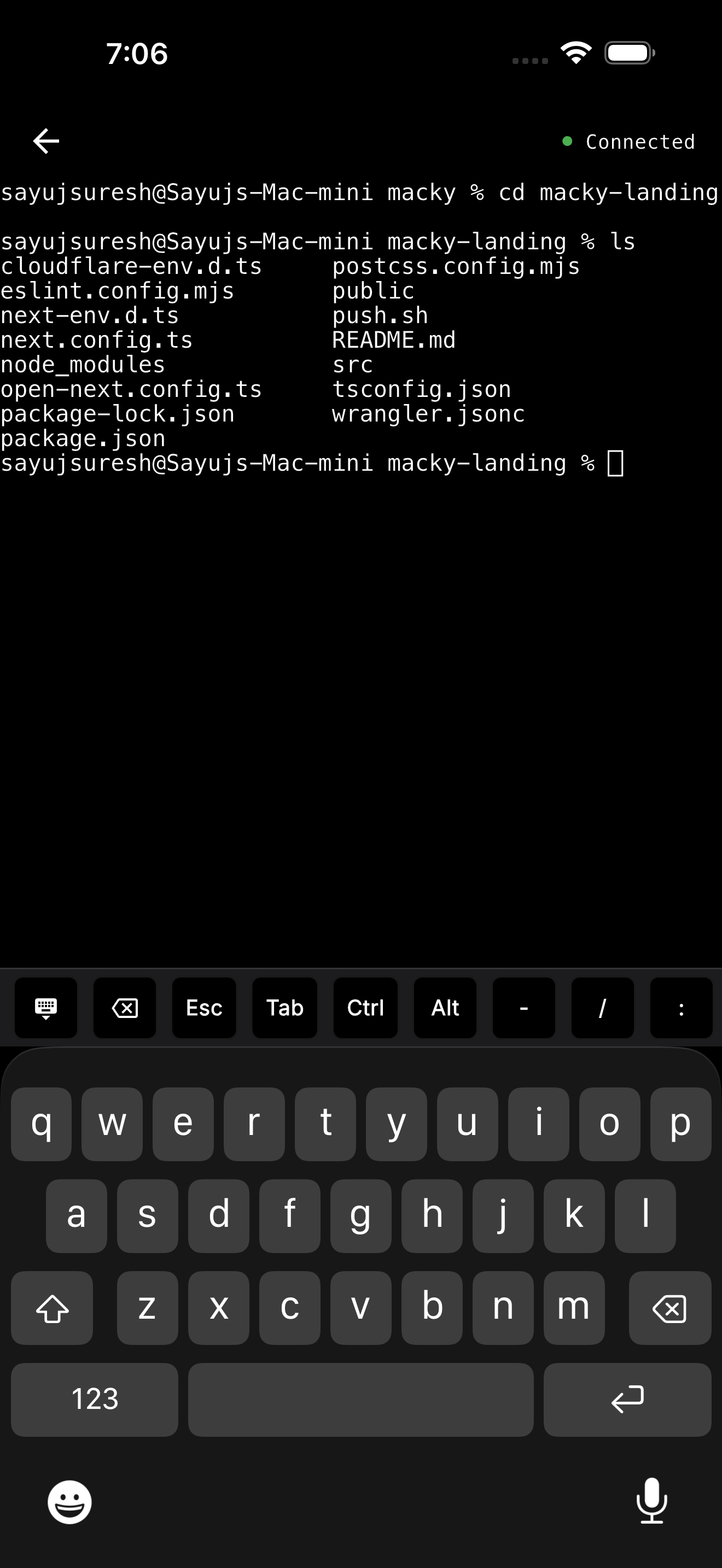
Macky opens a real shell session on your Mac (zsh or bash). Start Claude Code there, detach, and attach again from your phone when you're away from your desk.
The key bar has Esc, Tab, Ctrl, and arrow keys. The connection is end-to-end encrypted with no open ports on your network.
Permission Modes and Device Checks
Remote Control sessions you started yourself offer Manual, Accept edits, Plan, and Auto modes. You can't select Bypass permissions from the app. A mode that asks less means fewer prompts to answer.
If Trusted Devices is on, your account can require a verified device before you view or steer sessions from the mobile apps.
Which One to Use
Remote Control is the simplest route if your plan supports it. The terminal route works with any Claude Code setup that runs in a shell on your Mac. For more mobile options, see Claude Code on iPhone and Mobile.
FAQ
Can I instruct Claude Code from my phone?
Yes. Remote Control lets you send input to a local session from the Claude app or claude.ai/code. You can also attach to the session in a terminal on your Mac from Macky.
How do I access Claude Code sessions from my phone?
Remote Control is the official way. Run /remote-control or claude --remote-control in your session. Then open the Claude app signed in to the same account and organization.
How do I automatically approve Claude Code actions?
Change the permission mode so Claude Code asks less often. The permission-modes page in the Claude Code docs lists what each mode allows.
Does Remote Control work with an API key?
No. Remote Control doesn't support API keys. It needs a Claude plan such as Pro or Max. Ultra, Team, and Enterprise work too.
Related Guides & Comparisons
Try Macky
Connect to your Mac terminal from your iPhone.