caffeinate on Mac: Commands to Keep Your Mac Awake (2026)
caffeinate is a command built into every Mac that keeps it awake. Open Terminal, type caffeinate, and your Mac stays awake until you press Ctrl+C.
It is free and needs no install. Below you will find every flag, the commands people actually use, and what to do about the one thing it can't handle: a MacBook with the lid closed.
caffeinate command builder
Pick what to keep awake and for how long. Then copy the command.
How to use caffeinate
Open Terminal and run:
caffeinateYour Mac now stays awake. The command keeps running in that window. Press Ctrl+C to stop it, and your Mac goes back to its normal sleep schedule.
Closing the Terminal window stops it too.
caffeinate flags
With no flags, caffeinate stops your Mac from idle sleeping. Flags let you choose exactly what stays awake.
| Flag | What it does |
|---|---|
| -d | Keeps the display on. |
| -i | Stops the Mac from idle sleeping. The screen can still turn off. |
| -m | Stops the disk from idle sleeping. |
| -s | Stops the whole system from sleeping. Only works when the Mac is plugged in. |
| -u | Tells macOS a user is active and wakes the display. Lasts 5 seconds unless you add -t. |
| -t 3600 | Sets a time limit in seconds. 3600 is one hour. |
| -w 1234 | Stays awake until the process with ID 1234 exits. |
You can combine flags. caffeinate -dims keeps the display, the system and the disk awake together.
Commands you will actually use
Keep your Mac awake until you stop it
caffeinateKeep the screen on too
caffeinate -dStay awake for one hour
caffeinate -t 3600Change the number of seconds to fit. 7200 is two hours. 28800 is eight hours.
Stay awake while a command runs
caffeinate -i npm run buildcaffeinate starts the command and keeps the Mac awake until it finishes. Then it lets go on its own. Use it for any long job: backups, downloads, test suites or a big brew upgrade.
Stay awake until a process finishes
caffeinate -w $(pgrep -n rsync)Here caffeinate waits for the newest rsync process to exit. You can find any process ID in Activity Monitor or with pgrep.
Run it in the background
caffeinate -d &The & sends it to the background, so you can keep using the same Terminal window.
How to check and stop caffeinate
To see what is keeping your Mac awake, run:
pmset -g assertionsLook for caffeinate in the list. You will see the active assertions, such as PreventUserIdleSystemSleep.
To stop every caffeinate process at once, run:
killall caffeinateDoes caffeinate work with the lid closed?
Usually no. Closing the lid puts a MacBook to sleep, and caffeinate does not prevent that. The exception is clamshell mode. If the MacBook is plugged in with an external display connected, it keeps running with the lid closed.
To keep a closed MacBook awake without a display, you have three options:
- pmset: Run
sudo pmset -a disablesleep 1to turn sleep off completely. Turn it back on withsudo pmset -a disablesleep 0. Don't put the MacBook in a bag while sleep is off. It can get very hot. - Amphetamine: A free app on the Mac App Store with settings for closed-lid use.
- Battery settings: On many MacBooks, System Settings > Battery > Options has a setting to prevent automatic sleeping on power when the display is off.
We cover all three in our guide to keeping a MacBook awake with the lid closed.
How to wake a sleeping Mac remotely
caffeinate keeps a Mac awake. It can't wake one that is already asleep. For that, turn on Wake for network access. On a MacBook it is in System Settings > Battery > Options. On a desktop Mac it is under Energy.
With it on, your Mac can wake up when another device on your network tries to reach it, for example over Screen Sharing or file sharing.
Keep long jobs running while you are away
caffeinate is perfect for long jobs. Builds, test runs and AI agents like Claude Code or Codex can take an hour or more. Wrap the job so the Mac stays awake until it is done:
caffeinate -i claudeThen comes the next question: how do you check on it away from your desk? Macky puts your Mac's terminal and screen on your iPhone. You see the job live and can type into it.
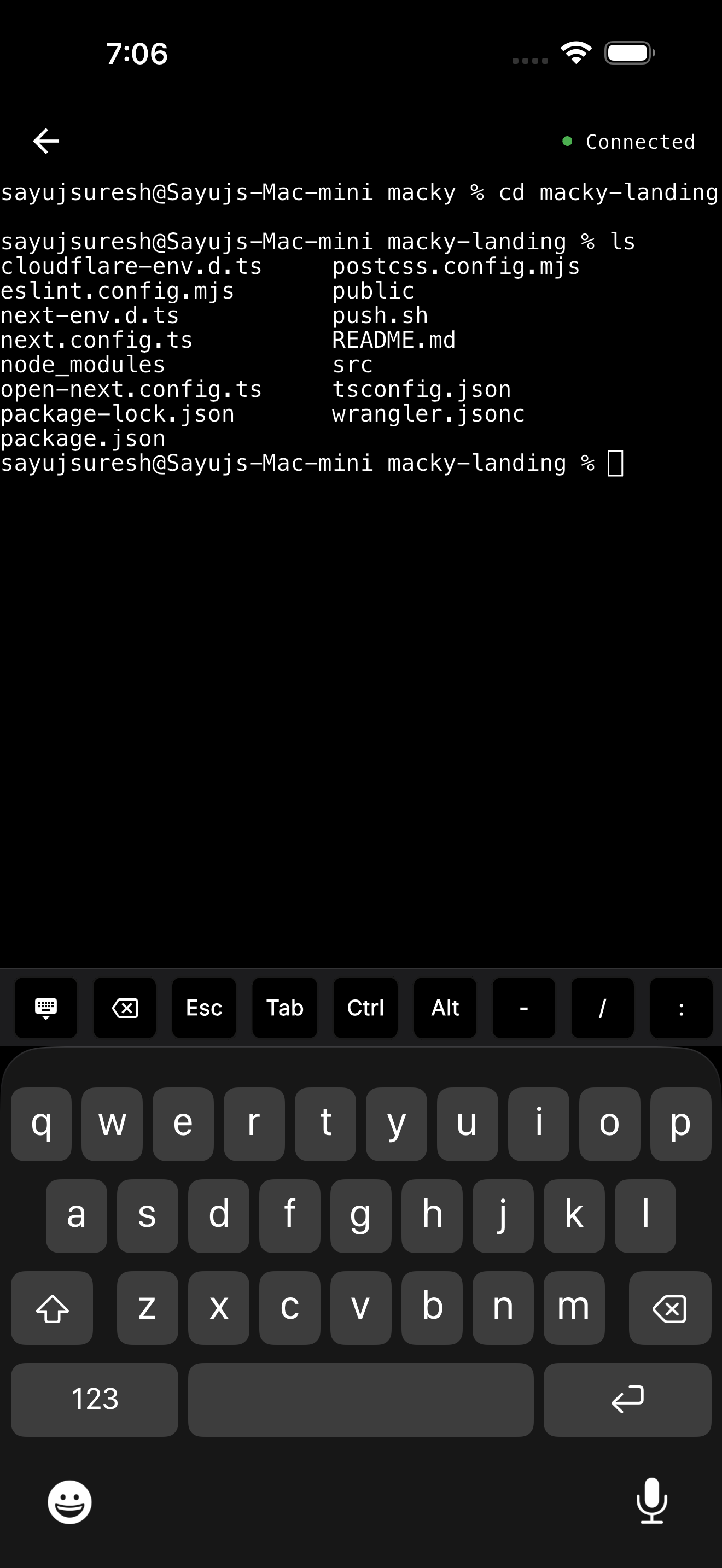
- Lid closed: With Macky Pro you can keep using your MacBook with the lid closed.
- AI agents: Claude Code and Codex have their own modes. Approve the next step with y and Enter on the key bar.
- Full control: Esc, Tab and Ctrl sit on the key bar. Switch to the full Mac screen when you need it.
Macky is free to try with 5 minute sessions. Pro is a one-time $29. Get it on the App Store.
More on this in how to use Claude Code from your iPhone. Running a Mac mini as a server? See our headless Mac mini guide.
FAQ
Does caffeinate work when I close my MacBook lid?
No. A MacBook sleeps when you close the lid unless it is plugged in with an external display connected. For closed-lid use, run sudo pmset -a disablesleep 1 or use an app like Amphetamine.
How do I stop caffeinate?
Press Ctrl+C in the Terminal window where it runs. To stop every caffeinate process, run killall caffeinate.
How do I keep my Mac awake for 1 hour?
Run caffeinate -t 3600. The number is in seconds, so 7200 is two hours.
What is the difference between caffeinate -i and -d?
-i stops the Mac from idle sleeping but lets the screen turn off. -d keeps the screen on. Use both with caffeinate -di.
Does caffeinate drain the battery?
It keeps the Mac running, so the battery drains faster than when it sleeps. caffeinate -s only works when the Mac is plugged in.
How can I tell if caffeinate is running?
Run pmset -g assertions and look for caffeinate. You can also run pgrep caffeinate.
Related Guides & Comparisons
Try Macky
Connect to your Mac terminal from your iPhone.