Cursor on iPhone: What Works Today (2026)
Cursor has a native iOS app in public beta. It lets you launch cloud agents or control agents running on your own computer from your phone. It needs iOS 26.0 or later and a paid Cursor plan.
This page covers what the app does and how to set up Remote Control. If you also want your Mac's terminal and screen on your iPhone, Macky does that.
Searching for the on-screen pointer instead? Jump to the pointer section near the end.
What the Cursor iOS App Does
- Cloud agents: launch always-on agents in the cloud and get notified when work is ready for review.
- Remote Control: control agents running on your computer from the phone.
- Handoff: use Move to Cloud, or send a local plan to a cloud agent.
Agents you start on mobile also appear in the Cloud Agents panel on desktop and at cursor.com/agents.
What You Need
| Feature | What you need |
|---|---|
| iPhone app | iOS 26.0 or later (iPadOS 26.0 or later on iPad), English |
| Cloud agents | Premium and higher, Teams or Enterprise, or a legacy paid plan. Plus doesn't include cloud agents. |
| Remote Control | Any paid plan and Cursor 3.9.8 or later on the computer |
| Free account | You can sign in but can't start agents |
Remote Control works only in the Agents Window. Local and Remote SSH workspaces both work. Only you can control your agents.
Set Up Remote Control
- Update Cursor on your computer to 3.9.8 or later.
- Download the iOS app and sign in.
- Tap your computer in the app.
- Approve the pairing request in the desktop app.
- Your local agents appear in a list.
Cursor's help page describes a manual path instead. Turn it on in Settings > Agents, run this in the agent input, then open the session in the app:
/remote-controlWe couldn't confirm which flow is current. Try pairing first. If your computer doesn't show up, use the manual path.
Remote Control is on by default except for Enterprise orgs. Enterprise admins turn it on at Org settings > Security and identity > Remote control.
Reach the Rest of Your Mac from Your iPhone
Macky puts your Mac's terminal and screen on your iPhone. It's end-to-end encrypted, with no open ports and no VPN to set up.
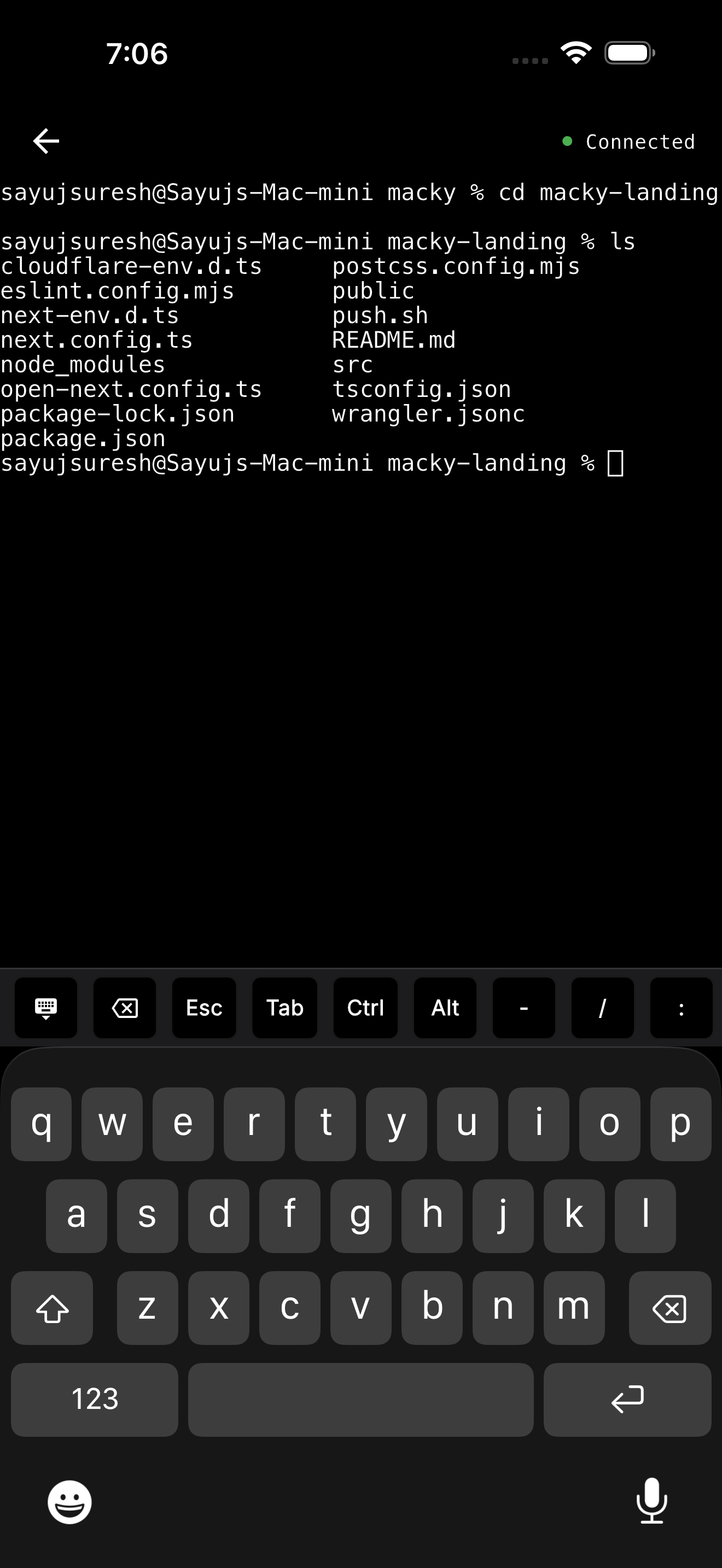
Open a real shell session on your Mac to check a build or run git. Switch to Screen mode to see the desktop and click through it.
The Mac app has a keep awake switch and a closed-lid mode. Each new iPhone has to be approved on the Mac first.
If Remote Control Doesn't Show Up
If the Remote Control setting or the /remote-control command is missing, update Cursor and make sure you're in the Agents Window. On a Teams or Enterprise account, ask an admin to enable it.
We found no first-party statement on whether the computer must stay on and online, so assume it does. For the Mac side, see caffeinate on Mac.
Cursor on Android
Cursor has no native Android app. Open cursor.com/agents in Chrome and install it with "Install App" or "Add to Home screen".
The Other Cursor: The On-Screen Pointer
Go to Settings > Accessibility > Touch > AssistiveTouch. Pointer Devices has settings for Mouse Keys, Pointer Style, and Tracking Sensitivity. Pointer Style adjusts size, color, and auto-hide.
FAQ
How do I turn on the cursor on my iPhone?
Open Settings > Accessibility > Touch > AssistiveTouch and turn it on. Connect a mouse or trackpad to see a grey circular pointer.
How do I bring back the cursor on my iPhone?
Check that AssistiveTouch is on and a pointer device is connected. Then check the auto-hide setting under Pointer Style.
Is there a Cursor app for Android?
No. Cursor has no native Android app. Open cursor.com/agents in Chrome and use "Install App" or "Add to Home screen".
Is there a Cursor app for iPhone?
Yes. Cursor for iOS is in public beta and needs iOS 26.0 or later. Free accounts can sign in but can't start agents.
Related Guides & Comparisons
Try Macky
Connect to your Mac terminal from your iPhone.