Remote Login on Mac: Should It Be On or Off? (2026)
Leave Remote Login off unless you SSH or SFTP into your Mac. It's usually off by default.
If you do need it, limit who can log in and switch to key-only authentication. Both steps are below.
If you only want to reach your Mac from your iPhone, Macky is another way in. It uses an end-to-end encrypted connection with no open ports on your network.
What Remote Login does
Remote Login lets another computer connect to your Mac with SSH or SFTP. You find it at System Settings > General > Sharing. Click the Info (ⓘ) button next to Remote Login.
When it's on, the SSH command appears under "Remote Login: On". For the full steps, see How to SSH into a Mac.
Should Remote Login be on or off?
Off is the safer setting. With it on, anyone who can reach port 22 can try to guess your password if password login is allowed. Intego notes that anyone on the same network can attempt a connection.
The CIS macOS benchmark also lists "2.4.5 Disable Remote Login."
- Leave it off if you never use SSH or SFTP to reach this Mac.
- Turn it on if you need SSH or SFTP, and lock it down first.
To turn it off, open System Settings > General > Sharing and switch off Remote Login.
If you need it on, lock it down
- Click the Info (ⓘ) button next to Remote Login. Set "Allow access for" to "Only these users" and add just the accounts you need.
- Leave "Allow full disk access for remote users" off unless you need it.
- Set up SSH key login and confirm it works.
- Then disable password login in a drop-in file.
Since Monterey, macOS reads files from /etc/ssh/sshd_config.d/. Apple's own file is 100-macos.conf, and files load in lexicographic order. Name yours so it sorts after it:
sudo nano /etc/ssh/sshd_config.d/101-mysetting.confPasswordAuthentication noRestart sshd with this command. Keep your current session open and test a new login from a second terminal before you close anything:
sudo launchctl kickstart -k system/com.openssh.sshdDisabling passwords before key login works can lock you out. Some guides also add AllowUsers and PermitRootLogin no.
Reach your Mac from your iPhone without opening a port
Macky is a Mac app plus an iPhone app that puts your Mac's terminal and screen on your iPhone.
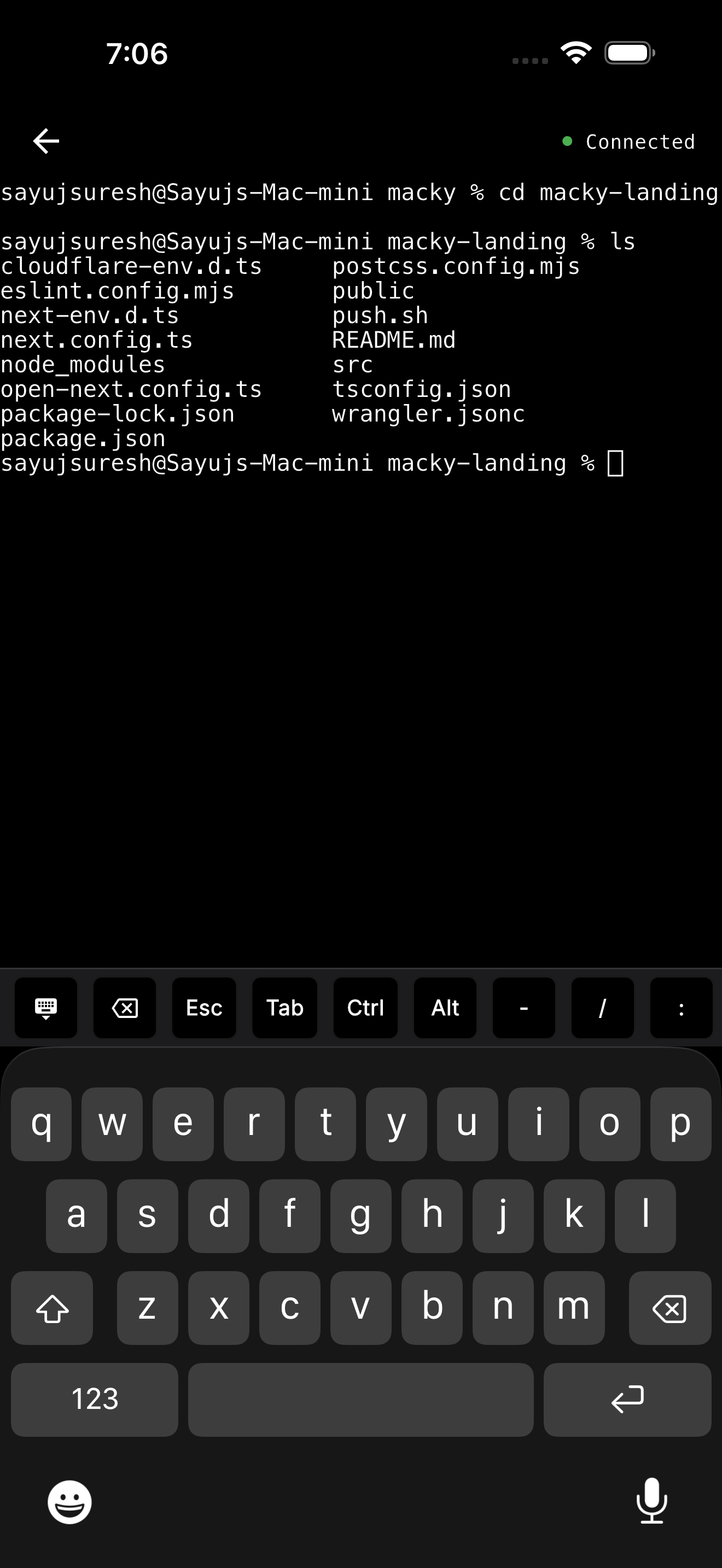
The connection is end-to-end encrypted WebRTC straight between your devices. There are no open ports on your network and no VPN to set up. A master password protects the Mac, and each new iPhone must be approved on the Mac before it can connect. Read more in Is Macky Safe?.
Screen Sharing and Remote Management are separate settings
Screen Sharing is a different service from Remote Login, so check each toggle on its own. See Apple Remote Desktop vs Screen Sharing vs Remote Management.
Recheck after macOS updates
Recheck Sharing and your sshd settings after a major macOS update. One 2021 report says updates can reset them, which we couldn't confirm.
FAQ
What does Remote Login mean on a Mac?
Remote Login lets another computer connect to your Mac using SSH or SFTP. You turn it on in System Settings > General > Sharing.
Should remote access be on or off?
Off, unless you use SSH or SFTP to reach your Mac. Remote Login is usually off by default. If you turn it on, limit who can log in and use key-based authentication instead of passwords.
How do you tell if someone is remotely accessing your Mac?
Open System Settings > General > Sharing and check which services are on. Remote Login, Screen Sharing, and Remote Management are the ones to look at. If you didn't turn one on, switch it off.
What are the downsides of leaving Remote Login on?
With Remote Login on, anyone who can reach port 22 can try to guess your password if password login is enabled. Key-only authentication and an "Only these users" list reduce that risk.
Related Guides & Comparisons
Try Macky
Connect to your Mac terminal from your iPhone.