Mac Mini SSH From iPhone: Step-by-Step Setup (2026)
To SSH into a Mac mini from your iPhone, turn on Remote Login on the Mac, then connect with an SSH client app such as Termius. You need the Mac's username and its address.
These steps work on the same Wi-Fi network. If you'd rather skip the setup, Macky puts your Mac mini's terminal and screen on your iPhone. It's end-to-end encrypted with no open ports.
Turn on Remote Login on the Mac mini
Do this on the Mac mini, or on its screen if it's connected to one.
- Choose Apple menu > System Settings.
- Click General in the sidebar, then click Sharing. You may need to scroll down.
- Click the Info button next to Remote Login.
- Turn on Remote Login.
- Use the "Allow access for" pop-up menu to choose "All users" or "Only these users."
"Only these users" lets you limit access to your own account. "Allow full disk access for remote users" is optional, and Apple's page treats it that way.
Find your username and address
Open Terminal on the Mac mini and run:
whoamiThat prints your username. Then get the IP address:
ipconfig getifaddr en0If that prints nothing, look up the address in System Settings > Network. The full command looks like ssh you@192.168.1.42. Apple's own example is ssh steve@10.1.2.3.
A hostname can replace the IP address. One Apple discussions answer says computer-name.local should work, using the name set in System Settings > General > Sharing.
Connect from your iPhone
- Install an SSH client on your iPhone. Termius is free in the App Store, with in-app purchases for extras.
- Connect the iPhone to the same Wi-Fi network as the Mac mini.
- Create a new host in the app. Enter the Mac mini's address and your username.
- Enter your Mac account password when asked, then connect.
You should land at a shell prompt on the Mac mini. For other apps, see Best iOS SSH Clients.
Reach your Mac mini without hunting for its IP
Macky gives you the Mac mini's terminal on your iPhone without an SSH client, an IP address, or a saved host to keep updated.
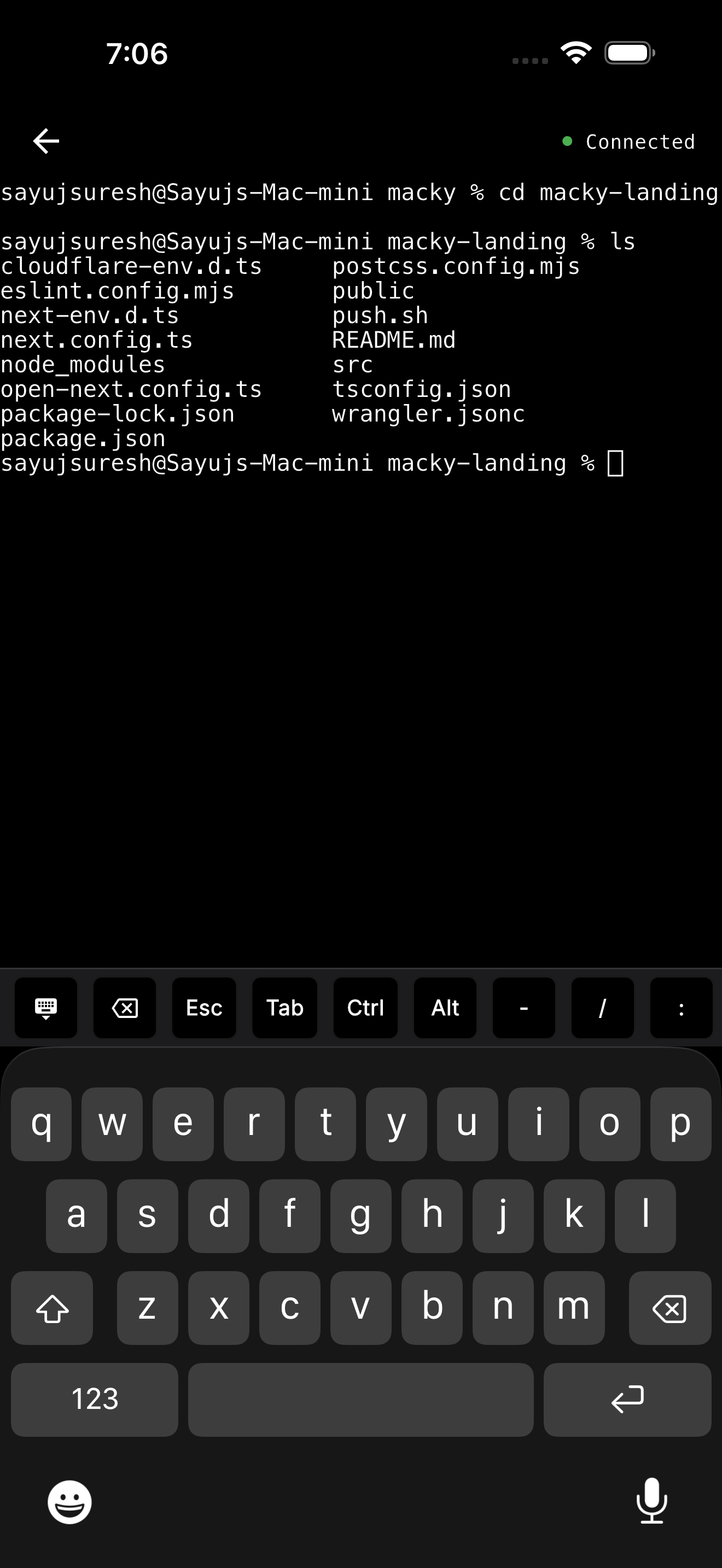
Your phone and Mac connect end-to-end encrypted with no open ports. Macky also has a screen mode when you need the desktop. Closed-lid access works too, which helps if you use a MacBook as well.
Fix common connection errors
If SSH says "Connection refused," Remote Login is most likely off, so nothing is listening on port 22. Turn it on in Sharing.
If the connection times out, check three things. Wake the Mac mini, confirm both devices are on the same network, and recheck the Mac's current address. A saved address can go stale.
Security and using it away from home
Apple warns that allowing remote login can make your Mac less secure. Limit access to the users who need it.
These steps cover your home network. For other networks, read How to SSH Into Your Mac from Your iPhone and Tailscale vs Macky. The general SSH setup is in How to SSH into a Mac.
FAQ
Can I SSH into my Mac mini?
Yes. Turn on Remote Login in System Settings > General > Sharing, then connect with ssh username@hostname from another device on your network.
Can I do SSH from my iPhone?
You need an SSH client app. Termius is one option. Its App Store listing says SSH, Mosh, and Telnet sessions are among its free features. Enter your Mac mini's address and username, then log in.
Can I access my Mac mini remotely from my iPhone?
Yes. SSH gives you a terminal on the Mac mini. For the full desktop, see How to Control Your Mac from iPhone. Macky gives you both the terminal and the screen.
How can I SSH into a Mac using my iPhone?
Open the SSH client and create a host. Use the Mac mini's IP address or .local name and add your Mac username. Then connect. Remote Login must be on first.
Related Guides & Comparisons
Try Macky
Connect to your Mac terminal from your iPhone.