SSH to a VPS From iPhone Using Your Mac's SSH Keys
The simplest way to SSH to a VPS from your iPhone is to run ssh on your Mac and control that session from your phone. Your private keys stay on the Mac.
Macky opens your Mac's own shell on your iPhone, so ssh user@your-vps uses the keys and config you already have.
You can also run SSH on the phone itself. Termius, Blink Shell, and Secure ShellFish can import keys. Both routes are below.
Run SSH Through Your Mac
First confirm the login works from the Mac itself:
ssh user@203.0.113.10Add a shortcut to ~/.ssh/config so you type less on a touch keyboard:
Host vps
  HostName 203.0.113.10
  User deploy
  IdentityFile ~/.ssh/id_ed25519
If the VPS doesn't have your public key yet, install it from the Mac:
ssh-copy-id user@203.0.113.10Now open a Terminal session on your iPhone and connect:
ssh vpsThe key bar has Esc and Tab. It also has Ctrl and the arrow keys. You'll need them in vim, tmux, and shell history.
Keep Your Keys on the Mac
Macky runs a real zsh or bash session on your Mac and shows it on your iPhone. That means ssh reads the same ~/.ssh folder it always does.
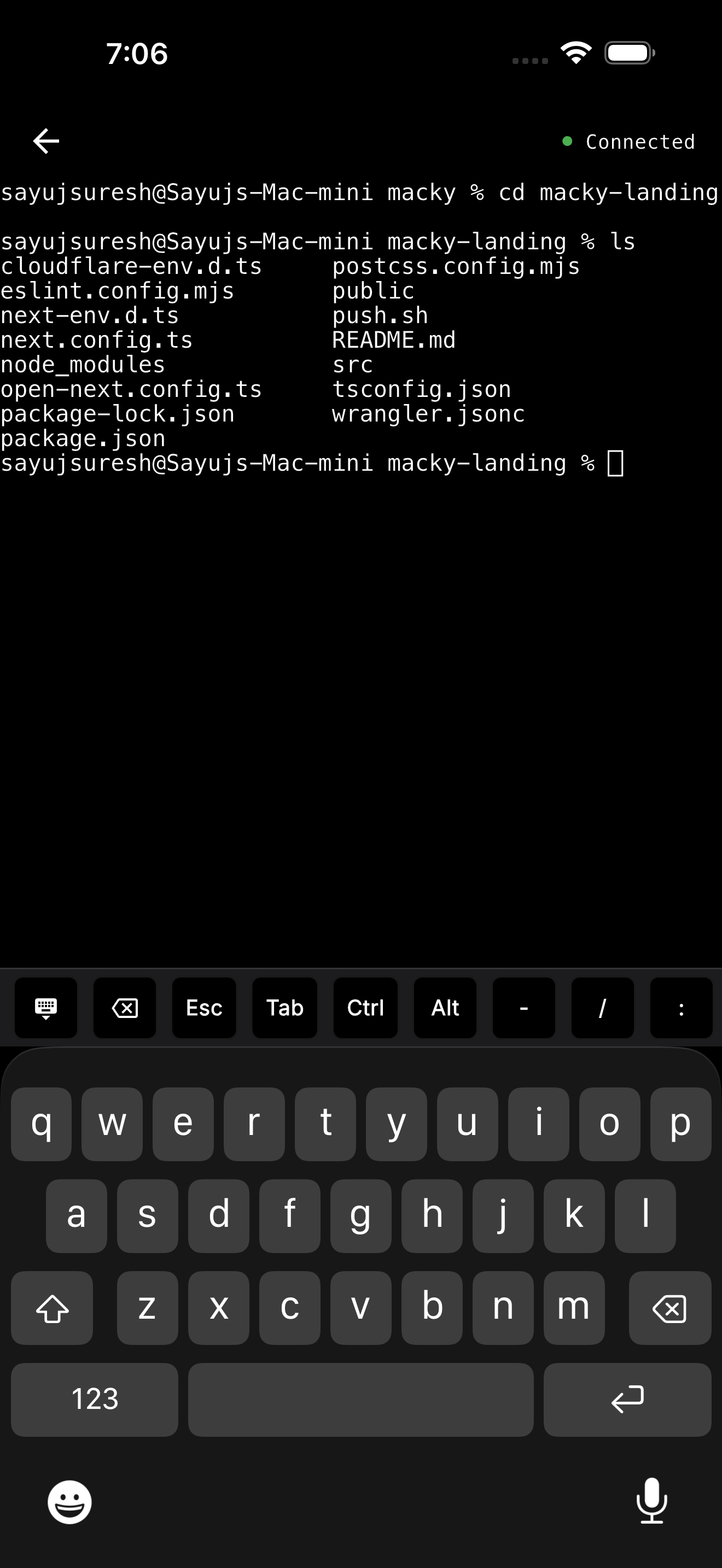
Nothing gets exported, pasted, or re-created on the phone. The connection between your devices is end-to-end encrypted WebRTC with no open ports on your network. A master password protects the Mac, and each new iPhone must be approved on the Mac first.
Import Keys Into an iPhone SSH App
Each of these apps runs SSH on the iPhone, so the key has to exist on the iPhone.
- Termius: tap + and choose Paste Key. Paste the private key, set a Label, and save. It can also import a key from a file.
- Blink Shell: the docs cover generating or importing a key pair and installing the public key on a host. Blink also has an
ssh-copy-idcommand. - Secure ShellFish: the key picker shown when you set up a server can generate and import keys.
Many people generate a separate key for the phone and add its public key to the VPS, instead of copying the Mac's private key. That way you can remove the phone's access on its own if you lose it.
| Method | Where the private key lives | Setup |
|---|---|---|
| Macky Terminal | Stays on the Mac | Run ssh in the Mac's shell |
| Termius | Imported onto the iPhone | Paste Key or import a file |
| Blink Shell | Imported or generated in the app | Follow the Blink key docs |
| Secure ShellFish | Imported or generated in the app | Use the key picker |
For a wider comparison of clients, see Best iOS SSH Clients.
Keep the Mac Awake
The Mac route only works while the Mac is on and awake. Use caffeinate to hold it awake (see caffeinate on Mac). For a laptop with the lid shut, read How to Keep a MacBook Awake with Lid Closed.
To reach the Mac itself over SSH instead, see How to SSH Into Your Mac from Your iPhone.
FAQ
Can I use my Mac's SSH key in Termius on iPhone?
Yes. Termius can import an existing private key from a file or by pasting it from the clipboard. On iOS, tap + and choose Paste Key. Paste the key, add a Label, and save. That puts a copy of the private key on your iPhone.
Do my private keys have to be copied to my iPhone?
No, if you run ssh in a Macky Terminal session. The command runs in your Mac's shell, so the keys stay on the Mac and never go to the phone.
How do I SSH to a VPS from an iPhone?
Install an SSH client such as Termius, Blink Shell, or Secure ShellFish. You can also open your Mac's terminal from the phone and run ssh there.
Do I need to open ports or set up a VPN?
Macky opens no ports on your network. The connection between your iPhone and Mac is end-to-end encrypted WebRTC. Your VPS still needs its SSH port reachable from your Mac, as it does today.
Related Guides & Comparisons
Try Macky
Connect to your Mac terminal from your iPhone.