Mac Mini Remote Access From an iPad: SSH and Screen
The built-in way to reach a Mac mini from an iPad is SSH. Turn on Remote Login on the Mac, then connect from an SSH app on the iPad. If you want the Mac's screen, you need a remote desktop app on top of that.
If you'd rather use your iPhone, Macky puts the Mac mini's terminal and screen there. The steps below cover the iPad first.
Get a terminal on your Mac mini with SSH
Remote Login lets another computer connect to your Mac over SSH or SFTP. Apple's steps:
- On the Mac mini, choose Apple menu > System Settings.
- Click General in the sidebar, then click Sharing. You may need to scroll down.
- Click the Info button next to Remote Login, then turn on Remote Login.
- Optional: turn on "Allow full disk access for remote users."
The login command looks like this:
ssh username@ip-addressRun it from any SSH app on your iPad. Apple warns that allowing remote login can make your Mac less secure. For more detail, see How to SSH into a Mac. For app choices, see iPad Terminal: 6 Best Apps.
See the screen from your iPad
SSH gives you a shell only. To see and click around the desktop, you need a remote desktop app on the iPad. Our post on Apple Remote Desktop vs Screen Sharing explains Apple's options.
To compare tools, read Best Remote Desktop for Mac. To reach the Mac from outside your home network, read Does Apple Remote Desktop Work Over the Internet?.
Reach your Mac mini from your iPhone
Macky is a Mac app plus an iPhone app. Install the Mac app on your Mac mini and you get real shell sessions (zsh or bash) and a live view of its screen on your iPhone.
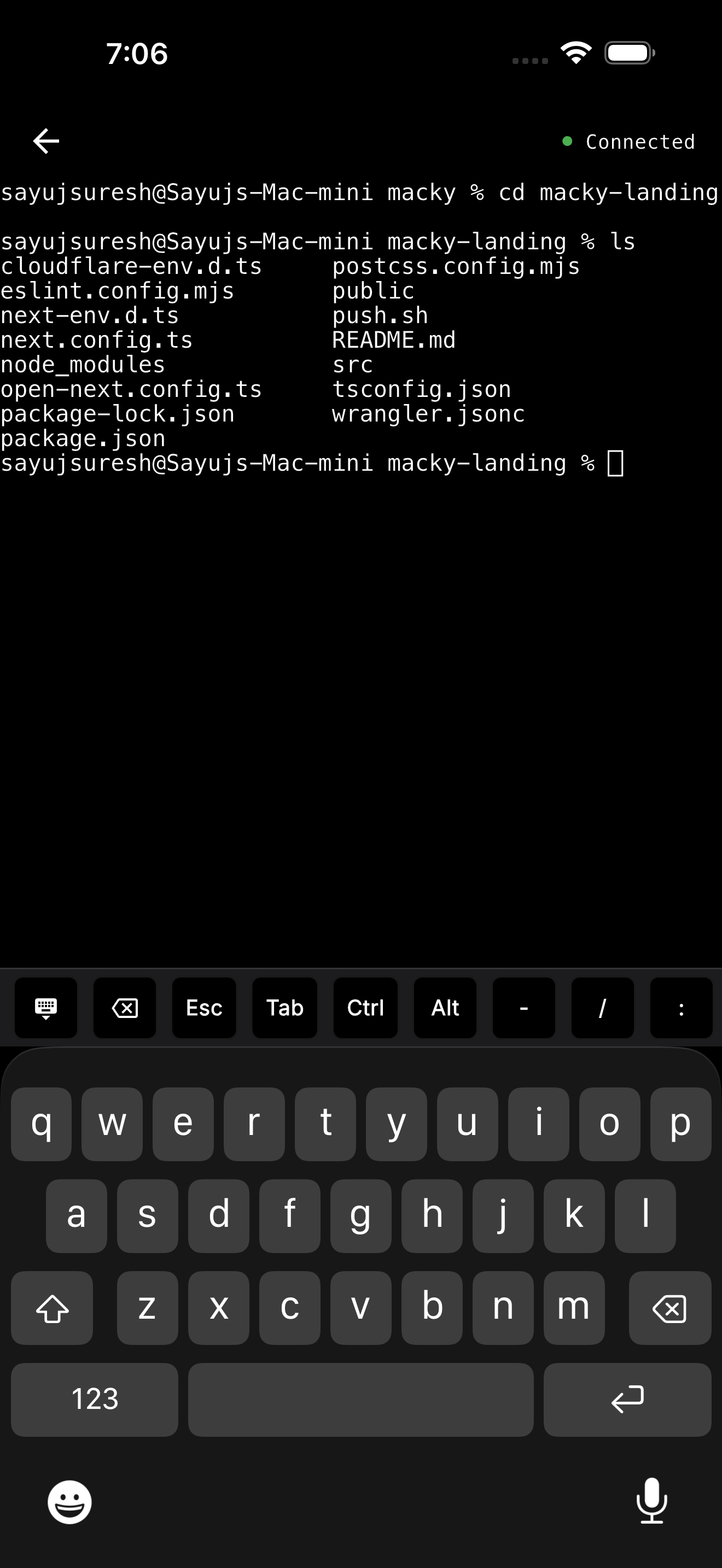
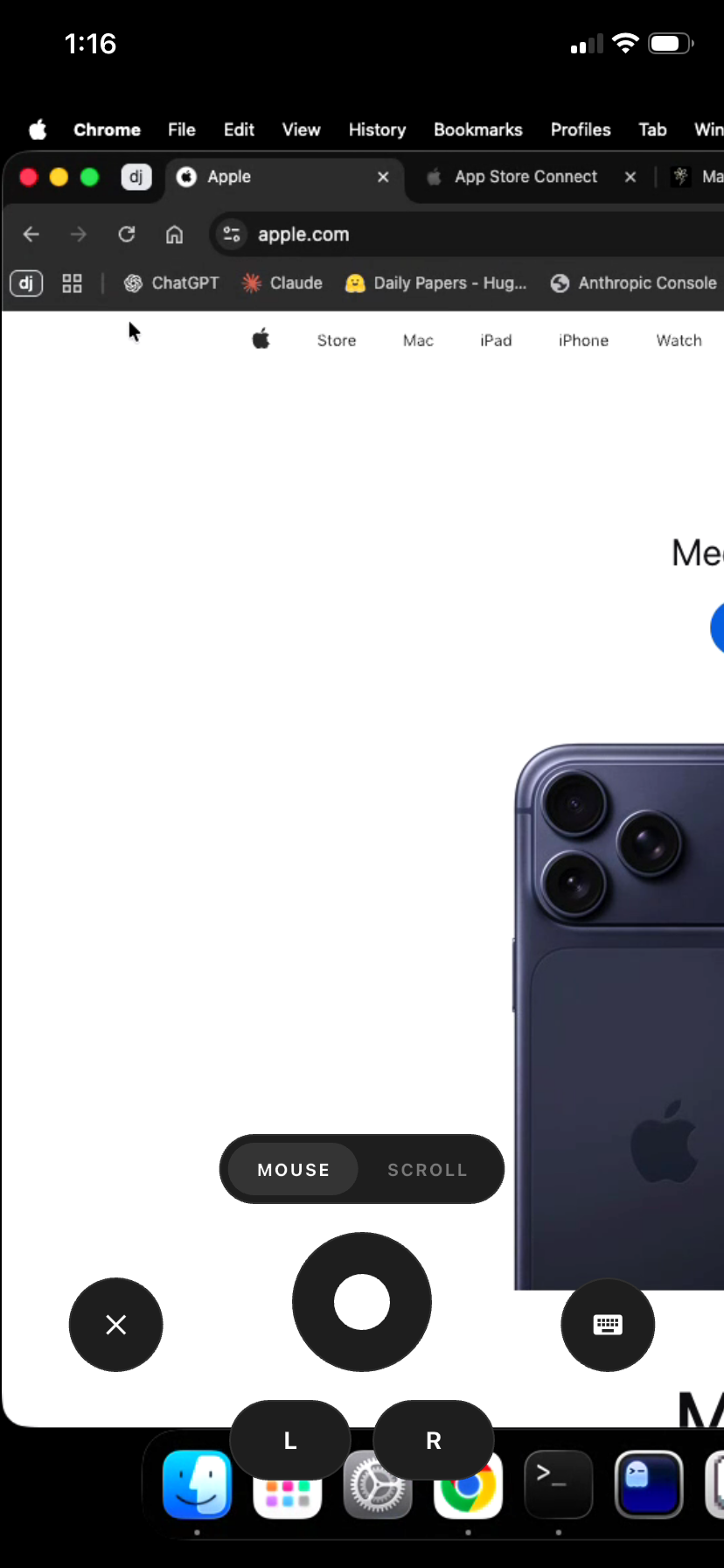
The connection is end-to-end encrypted WebRTC straight between your devices. There are no open ports and no VPN to set up. A master password protects the Mac, and each new iPhone must be approved on the Mac before it connects. The Mac app also has a keep awake switch and a closed-lid mode.
Running the Mac mini headless
A Mac mini often runs with no monitor attached. Keep it awake so it stays reachable. Our headless Mac mini guide covers the setup. caffeinate on Mac covers keeping it awake from the command line.
To use the iPad as the Mac mini's display, read How to Use an iPad as a Monitor for Mac Mini.
Which route fits
| You want | Use |
|---|---|
| A shell on the Mac mini from an iPad | Remote Login plus an SSH app |
| The Mac mini's desktop on an iPad | A remote desktop app |
| The iPad as the Mac mini's display | The monitor guide linked above |
| Terminal and screen on an iPhone | Macky |
FAQ
Can I connect a Mac mini with an iPad?
Yes, over the network. You can open a terminal session on the Mac mini from an iPad with SSH after you turn on Remote Login. For the full screen, you need a remote desktop app on the iPad. Our guide to using an iPad as a monitor covers the display side.
Can I access my Mac mini remotely from my iPhone?
Yes. Macky is an iPhone and Mac app that gives you the Mac mini's terminal and screen on your iPhone. The connection is end-to-end encrypted and needs no open ports or VPN.
How do I access my Mac mini remotely?
Turn on Remote Login in System Settings > General > Sharing for terminal access over SSH. For the screen, use a remote desktop tool. Our guide to accessing a Mac remotely compares the options.
How do I remote into macOS from an iPad?
Use SSH for a shell. Enable Remote Login on the Mac, then connect from an SSH app on the iPad with ssh username@ip-address. For the desktop, use a remote desktop app.
Related Guides & Comparisons
Try Macky
Connect to your Mac terminal from your iPhone.