Docker on a Mac Mini Headless: Colima vs Docker Desktop
Colima is the simpler way to run Docker on a headless Mac mini. It installs with Homebrew, has no window to click, and starts at login with one command. Docker Desktop also works, but it's a GUI app built around a logged-in user.
Both options start once a user session logs in. If you manage the mini from your phone, Macky lets you open its terminal and check on your containers from your iPhone.
Colima vs Docker Desktop on a Mac mini
| Colima | Docker Desktop | |
|---|---|---|
| Interface | Command line | GUI app |
| Autostart | brew services start colima | "Start Docker Desktop when you sign in" |
| Needs a logged-in user | Yes (LaunchAgent) | Yes (login-time setting) |
| Runtimes | Docker, containerd, Incus (or none) | Docker |
| Requirements | macOS 13 or newer, Intel or Apple Silicon | Not confirmed here |
| Licensing | Not covered here | Free for personal use, education, and small businesses |
Set up Colima to start at login
Install Colima and the Docker command-line client with Homebrew:
brew install colima dockerStart it once by hand to confirm it works:
colima startThen set it to start at login. This is the autostart method the Colima FAQ recommends for Homebrew installs:
brew services start colimaThis creates a LaunchAgent named sh.brew.colima that runs colima start -f at login and keeps it alive. A LaunchAgent only runs once a user has logged in, so your mini must reach a logged-in session after every reboot. For the wider setup, see Mac mini headless setup.
Run it next to Docker Desktop
Colima can sit next to Docker Desktop. It makes itself the default Docker context when it starts.
Check your containers from your iPhone
Macky gives you the Mac mini's real terminal on your iPhone, end-to-end encrypted, with no open ports and no VPN. Open a session and run docker ps or colima status from the couch.
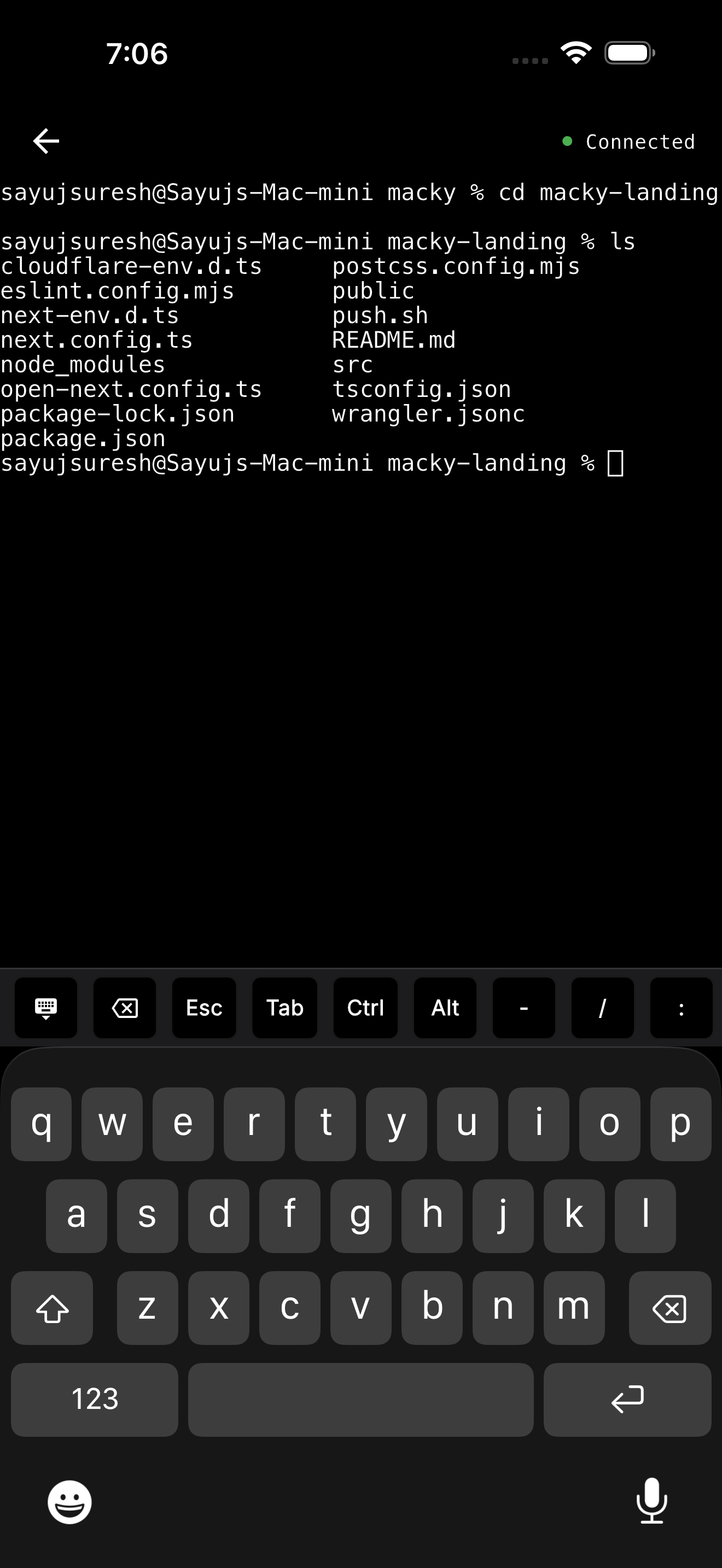
Screen mode shows the Mac's display too, which helps when you need to see a login window. For container tips, read how to manage Docker containers from iPhone.
Docker Desktop on a headless Mac
In Docker Desktop, turn on "Start Docker Desktop when you sign in".
A GitHub issue against Docker Desktop 4.92.0 reports that at login it checks for /var/run/docker.sock before the helper has created it. That triggers an admin password prompt, which blocks an unattended start. I found no official statement that Docker Desktop runs with nobody logged in.
Errors to expect after a reboot
One user on colima 0.10.1 with the vz VM type saw this after a reboot:
level=fatal msg="errors inspecting instance: [vz driver is running but host agent is not]"That report points to stale state from the previous session. I couldn't confirm a fix.
A root service started at boot with sudo brew services can't see the Colima socket of a user who hasn't logged in. Keep the mini awake too: see caffeinate on Mac.
FAQ
Can you run Docker on a headless Mac mini?
Yes, as long as a user is logged in. Colima runs from the command line and brew services start colima starts it at login. Docker Desktop has a start-at-login setting too. Neither is confirmed to run before anyone logs in.
What is Colima?
Colima is a command-line tool that runs a Linux VM and a container runtime on macOS. It supports Intel and Apple Silicon Macs and needs macOS 13 or newer.
Can Colima run alongside Docker Desktop?
Yes. Since v0.3.0 Colima uses Docker contexts and makes itself the default context when it starts.
Is Docker Desktop free?
Docker Desktop is free for personal use, education, and small businesses (fewer than 250 employees and less than $10M annual revenue). Larger companies need a paid subscription. Check Docker's license page for current terms.
Does Docker start automatically when a Mac boots?
Not through a simple built-in switch. One article describes this as a general Mac limitation compared with Linux. In practice you use a login-time LaunchAgent, which is what brew services start colima creates.
Related Guides & Comparisons
Try Macky
Connect to your Mac terminal from your iPhone.