Mac Remote Management vs Screen Sharing vs Remote Login
Remote Management is the macOS setting that lets Apple Remote Desktop (ARD) manage your Mac. Screen Sharing lets another computer on your network view and control the screen. Remote Login gives SSH and SFTP access with no screen.
All three live in System Settings > General > Sharing. If you only want to reach your Mac from your iPhone, Macky puts its screen and terminal on your phone over an end-to-end encrypted connection.
The Three Settings at a Glance
| Setting | What it gives you | Client |
|---|---|---|
| Screen Sharing | View and control the screen | The Screen Sharing app or a VNC viewer |
| Remote Management | Lets Apple Remote Desktop administer the Mac | Apple Remote Desktop |
| Remote Login | SSH and SFTP access | Terminal or an SFTP client |
What Remote Management Does
Apple Remote Desktop is an admin app for managing Macs in business and education. To manage a Mac with it, turn on Remote Management on that Mac first.
The Remote Management pane has these options:
Always show Remote Management status in menu barAnyone may request permission to control screenVNC viewers may control screen with password- Access for
All usersorOnly these users
Screen Sharing and Remote Login
Screen Sharing lets users of other computers on your network connect to view and control your Mac. On another Mac, open the Screen Sharing app or enter an address like vnc://IPAddress or vnc://Name.Domain.
Remote Login gives SSH or SFTP access from another computer. For the full setup, see How to SSH into a Mac.
How to Turn Each One On
- Open Apple menu > System Settings > General > Sharing.
- For Remote Management, click the Info button next to it and turn on Remote Management.
- For Screen Sharing or Remote Login, turn on the switch and click the Info button to pick
All usersorOnly these users.
Reach Your Mac From Your iPhone
Macky has two modes. Screen mode shows your Mac's live screen on your iPhone with a trackpad-style cursor and an on-screen keyboard.
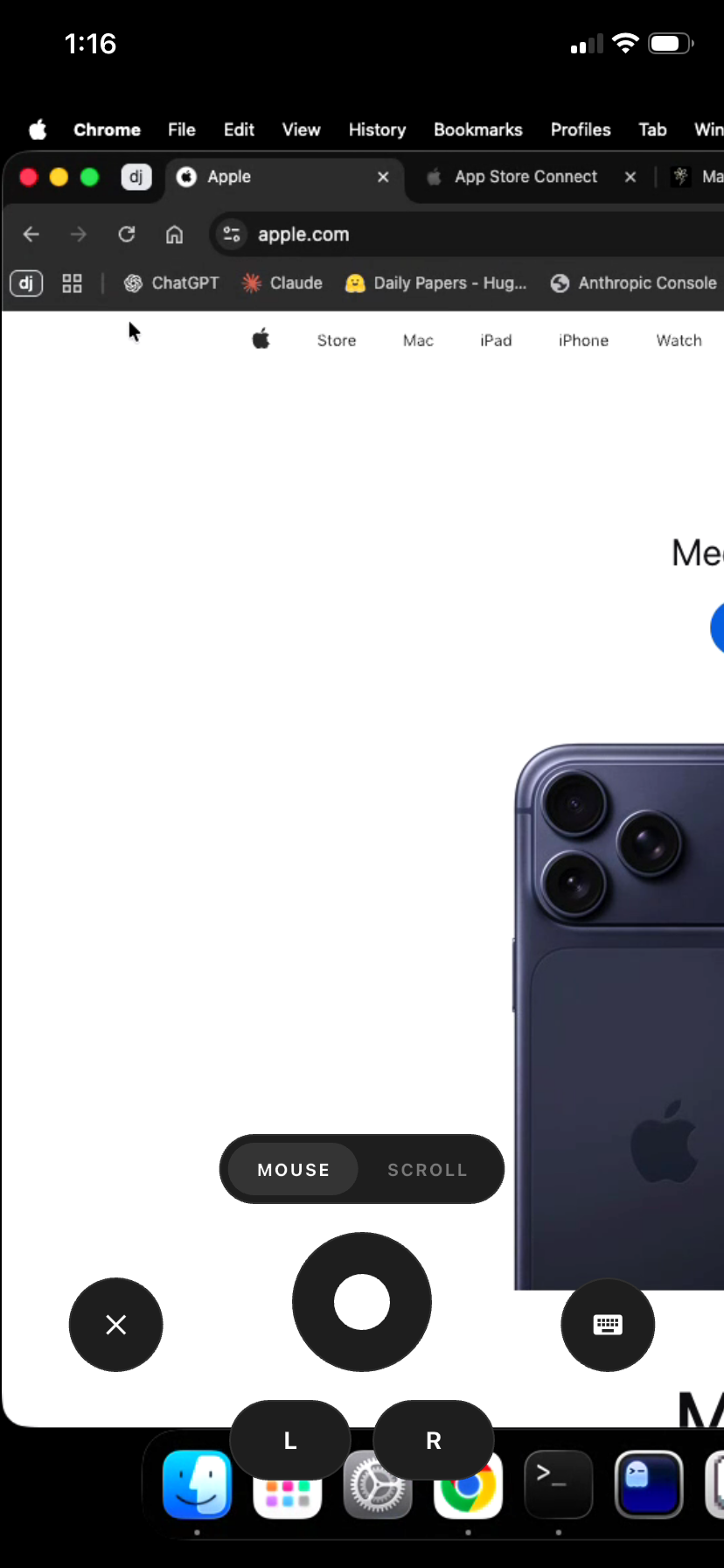
Terminal mode opens real zsh or bash sessions on the same Mac. The connection is end-to-end encrypted WebRTC with no open ports and no VPN. A master password protects the Mac, and each new iPhone must be approved on it first.
Limits and Quirks
Apple's Screen Sharing page says you can't have both Screen Sharing and Remote Management on at the same time. If one won't turn on, turn the other off first.
Apple also warns that allowing Remote Login can make your Mac less secure. Limit it to Only these users.
Which One to Use
- One Mac, occasional access: Screen Sharing.
- Many Macs, admin tasks: Remote Management with Apple Remote Desktop.
- Command line or file transfer: Remote Login.
- Outside your home network: see Does Apple Remote Desktop Work Over the Internet?
FAQ
What is the difference between screen sharing and remote management on macOS?
Remote Management lets Apple Remote Desktop administer your Mac. Screen Sharing lets another computer on your network view and control the screen. You can't have both on at the same time.
How to remote manage a Mac?
Open Apple menu > System Settings > General > Sharing. Click the Info button next to Remote Management, then turn on Remote Management. Choose All users or Only these users.
How can I tell if my Mac is being monitored?
Open System Settings > General > Sharing and check whether Remote Management, Screen Sharing, or Remote Login is on. Remote Management can also show its status in the menu bar.
Can I turn on Screen Sharing and Remote Management together?
No. Apple's Screen Sharing page says you can't have both on at the same time. Turn one off first.
Do I need these settings to control my Mac from an iPhone with Macky?
No. Macky uses its own Mac app and an end-to-end encrypted WebRTC connection between your devices. It needs no open ports and no VPN.
Related Guides & Comparisons
Try Macky
Connect to your Mac terminal from your iPhone.