Universal Control vs Remote Desktop: Controlling a Mac From an iPad
Universal Control shares one keyboard and mouse between a Mac and an iPad sitting next to each other. Remote desktop shows your Mac's screen on another device from anywhere. If your Mac is in another room or another city, you need remote desktop.
Macky is an iPhone app that puts your Mac's terminal and screen in your pocket when you're away from the desk.
Universal Control vs Remote Desktop at a Glance
| Feature | What it does | Range |
|---|---|---|
| Universal Control | Your Mac's keyboard and trackpad control a nearby iPad. Each device keeps its own screen and apps. | Within 10 m (30 ft) |
| Sidecar | The iPad becomes a display that extends or mirrors the Mac desktop. | Within 10 m (30 ft) wirelessly, or over USB |
| Remote desktop app | Shows your Mac's screen on your device and sends your input back. | Depends on the app |
Apple says to use Sidecar if you want the iPad to extend or mirror the Mac desktop. Universal Control doesn't put the Mac's screen on the iPad.
Set Up Universal Control
Sign in to the same Apple Account on both devices and turn on Bluetooth, Wi-Fi, and Handoff. Then follow these steps:
- On the Mac, open the Displays settings and turn on "Allow your pointer and keyboard to move between any nearby Mac or iPad."
- On the iPad, go to Settings > General > AirPlay & Continuity (or AirPlay & Handoff).
- Turn on Cursor and Keyboard.
- To connect manually, click Display in Control Center on the Mac, then choose your iPad under Link Keyboard and Mouse.
To disconnect, press Control-Option-Command-Delete. The iPad needs iPadOS 15.4 or later and can't share its cellular connection.
If Universal Control Won't Connect
Apple's fixes for devices that won't connect:
- Keep the devices within 1 m (3 ft) of each other.
- Turn Universal Control off on each device, restart each one, then turn it back on.
- Check for a VPN or third-party security software on both devices.
- Make sure the Mac firewall isn't set to block all incoming connections.
- Update both devices to the latest software.
- Stop any internet or cellular sharing.
Reach Your Mac When You're Not Nearby
Universal Control only works with devices close together. When you're out, Macky gives you a live view of your Mac's screen on your iPhone.
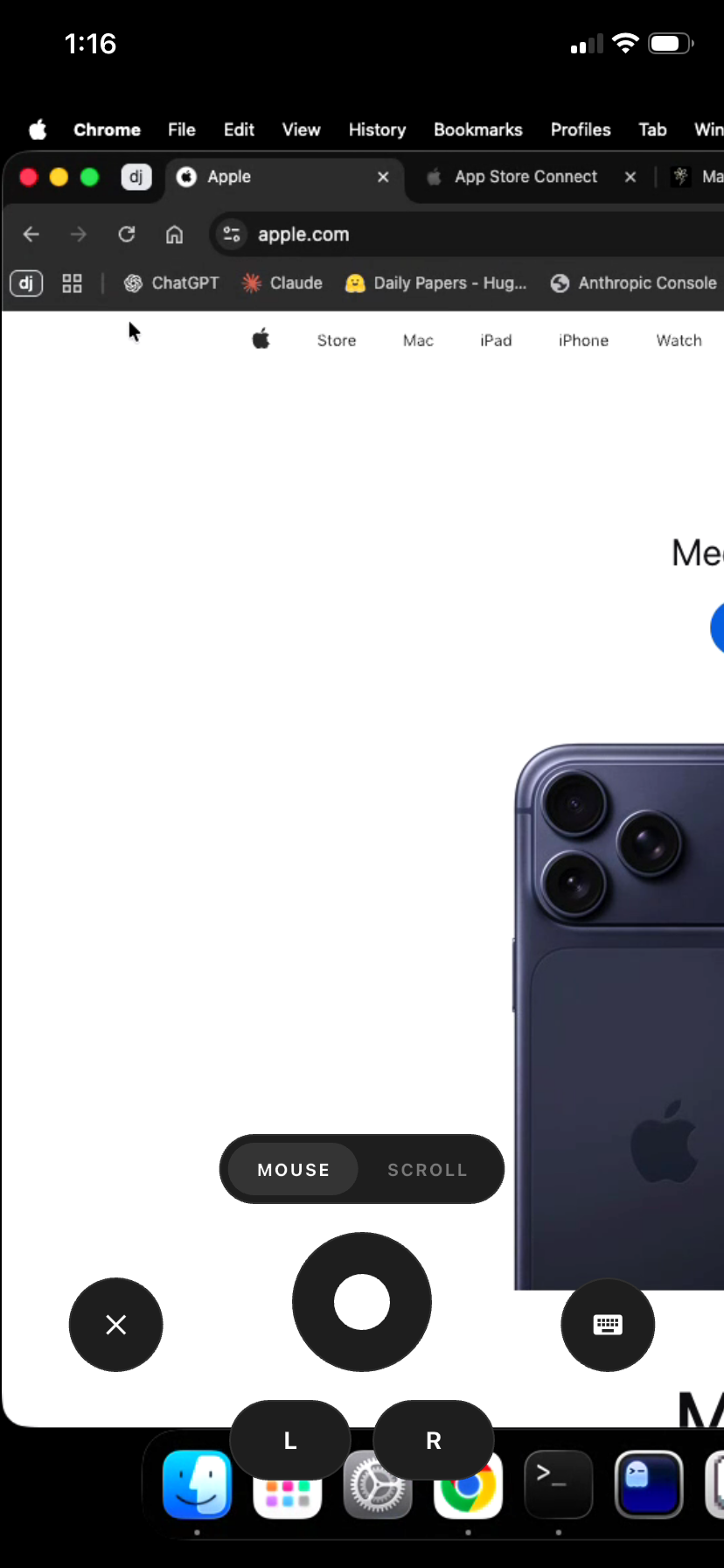
You get a trackpad-style cursor, scroll and drag modes, and left and right click buttons. Terminal mode opens real zsh or bash sessions on the Mac. The connection is end-to-end encrypted with no open ports. A master password protects the Mac, and each new iPhone needs approval on the Mac.
Sidecar for Using the iPad as a Display
Sidecar makes the iPad a second display for the Mac, wirelessly or over USB. It needs macOS Catalina 10.15 or later. Apple Pencil can replace the mouse or trackpad.
Which One to Use
Use Universal Control to share one keyboard and mouse on your desk. Use Sidecar for extra screen space. Use a remote desktop app for everything else. For options, see How to Access Your Mac Remotely.
FAQ
Can I use my iPad as a controller for my Mac?
Yes, within limits. Universal Control lets your Mac's keyboard and trackpad control a nearby iPad. With Sidecar, the iPad becomes a display for your Mac.
Is it possible to control your Mac from your iPhone?
Yes. A remote app can show your Mac's screen or terminal on your iPhone. Macky does this over an end-to-end encrypted connection. See How to Control Your Mac from iPhone.
How can I control my computer from my iPad?
Nearby, use Sidecar to turn the iPad into a Mac display, or Universal Control to share one keyboard and mouse. From another location, you need a remote desktop app. See Best Remote Desktop for Mac in 2026.
How do I set up Universal Control on a Mac and iPad?
Sign in to the same Apple Account on both devices and turn on Bluetooth, Wi-Fi, and Handoff. Then enable the pointer and keyboard setting on the Mac and Cursor and Keyboard on the iPad.
Related Guides & Comparisons
Try Macky
Connect to your Mac terminal from your iPhone.