How to Remote Into a Mac From an iPad (2026)
To remote into a Mac from an iPad, turn on Screen Sharing on the Mac and install a third-party remote desktop app on the iPad. Apple doesn't ship a general iPad client for this. One third-party guide says Screen Sharing is mainly a Mac-to-Mac feature.
Below are the Mac setup steps and three apps that work from an iPad. If you also carry an iPhone, Macky puts your Mac's terminal and screen there too.
Step 1: Turn on Screen Sharing on the Mac
Do this part first, whichever iPad app you pick.
- Open Apple menu > System Settings.
- Click General in the sidebar, then click Sharing.
- Turn on Screen Sharing.
- Click the Info button next to Screen Sharing to see its options.
For a plain VNC viewer, one setup guide also turns on "Allow VNC viewers to control screen with password" and sets a password. The label may differ by macOS version, so look for the equivalent option in the Info panel.
Step 2: Pick an iPad App
| App | Protocols | What to do |
|---|---|---|
| RealVNC Viewer | VNC | Install it on the iPad and connect with the VNC password you set on the Mac. |
| Jump Desktop | RDP, VNC, and Fluid | Install Jump Desktop Connect on the Mac. Install the iPad app and sign in with the same account. |
| Screens 5 | VNC | Install the iPad app (iPadOS 17.6 or later) and the Mac app (macOS 14.0 or later). |
Jump Desktop's App Store listing says its Fluid protocol uses DTLS for secure connections. Screens 5's listing says it reaches a Mac from an iPhone or iPad. The same listing names Windows PCs, Linux PCs, and Raspberry Pi.
Want a head-to-head? Read Screens 5 vs Jump Desktop. For more tools, see Best Remote Desktop for Mac.
Same Idea on Your iPhone
Macky is a Mac app plus an iPhone app. Its Screen mode shows your Mac's live screen on the iPhone with a trackpad-style cursor, scroll mode, and click buttons.
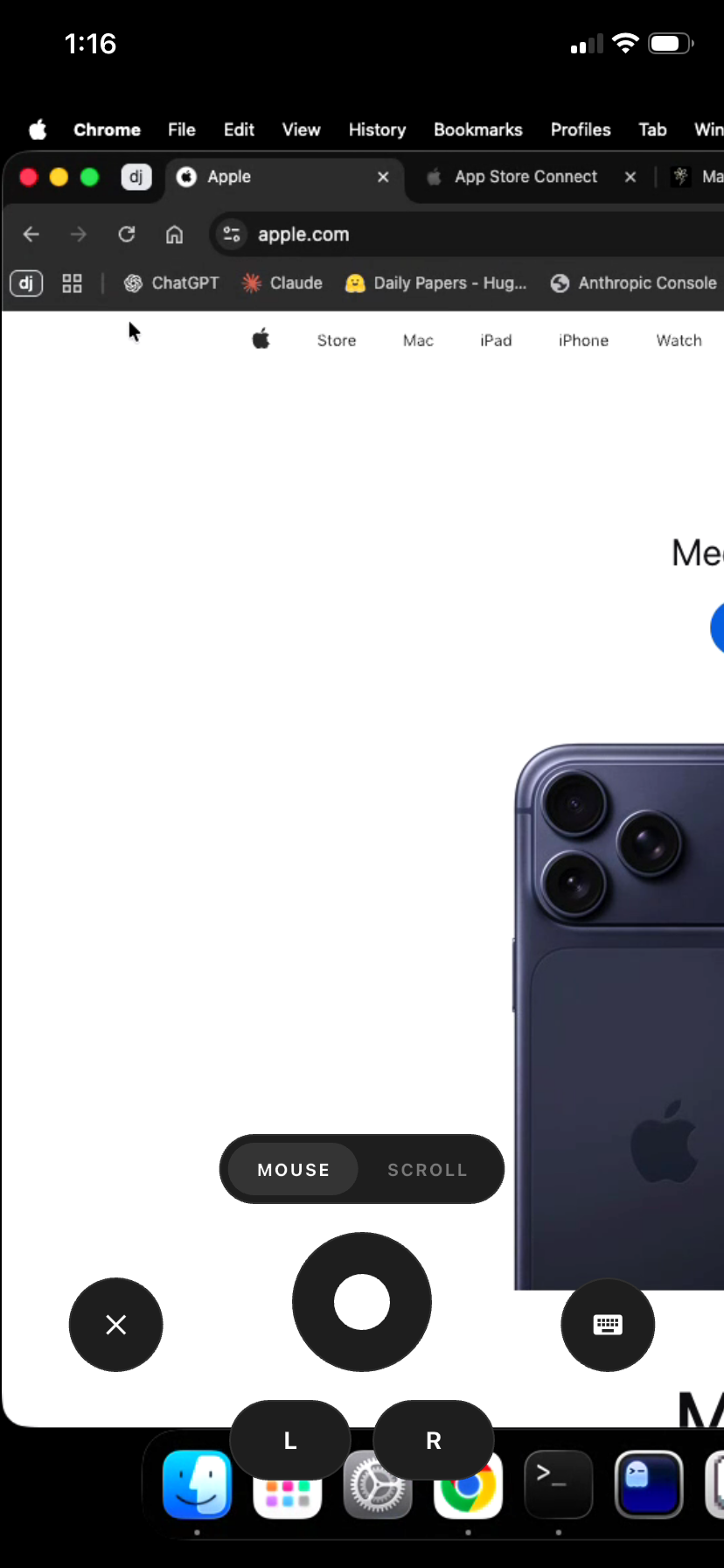
Terminal mode opens real zsh or bash sessions on the Mac. The connection is end-to-end encrypted WebRTC, with no open ports and no VPN to set up. A master password protects the Mac, and each new iPhone must be approved on the Mac before it connects.
Before You Connect
Remote control only works while the Mac is awake and reachable. If the Mac is a laptop, read how to keep a MacBook awake with the lid closed.
Connecting from outside your home network needs more setup. Does Apple Remote Desktop Work Over the Internet? covers that.
Terminal Only or Second Display
If you only need a command line, you don't need a screen viewer at all. Read How to SSH into a Mac and iPad Terminal apps.
Using the iPad as a second display for a Mac mini is a separate job. See How to Use an iPad as a Monitor for Mac Mini.
FAQ
How do I remote into a Mac from an iPad?
Turn on Screen Sharing on the Mac, then install a third-party remote desktop app on the iPad. RealVNC Viewer, Jump Desktop, and Screens 5 are three options. Apple doesn't offer an iPad client for this.
Is there anything like Remote Desktop for Mac on iPad?
Not through a built-in Apple app. One source says there is no general Apple-native Screen Sharing client for iPhone or iPad. You need an app from the App Store.
How do I access a Remote Desktop connection?
Open the Mac's Screen Sharing setting, then connect from a viewer app on the iPad. For Jump Desktop, install Jump Desktop Connect on the Mac. Then install the iPad app and sign in to the same account on both.
Can I use my Mac as a monitor for another Mac?
That is a display feature, which is different from remote control. If you want to control one Mac from another, read Mac to Mac Remote Desktop.
Related Guides & Comparisons
Try Macky
Connect to your Mac terminal from your iPhone.