Remote Access to a Mac Not on the Same Network (2026)
Apple's Screen Sharing only reaches Macs on the same network. For another network you have three routes: Tailscale, an SSH tunnel, or a remote desktop tool.
If you mostly want to check on your Mac from your phone, Macky puts its terminal and screen on your iPhone with no router setup. The sections below cover each route.
Why Screen Sharing Stops Working Off Your Network
Apple dropped Back to My Mac from macOS 10.14 Mojave. The service connected Macs over the internet without router setup. Apple discontinued it for all other macOS versions as of July 1, 2019. For Apple's remaining option, see Does Apple Remote Desktop Work Over the Internet?
Option 1: Tailscale Plus Screen Sharing
Tailscale makes both Macs appear as if they share one local network, even when they're far apart. Here's the setup:
- On the target Mac, open System Settings > General > Sharing and turn on Screen Sharing.
- Install Tailscale on both Macs.
- Log in to Tailscale with the same account on both.
- On the other Mac, open Finder > Go > Connect to Server.
Then enter this address, using the target Mac's Tailscale hostname:
vnc://<hostname>These steps come from community guides. For a full comparison, read Tailscale vs Macky.
Option 2: An SSH Tunnel With Port Forwarding
One Apple Community answer describes a manual route. Forward a high port on your router to SSH on port 22 and add a dynamic DNS name. Then tunnel VNC through SSH:
ssh -f -N -L 5900:localhost:5900 remote-mac
open vnc://localhost:5900
Only community sources describe this method. For the SSH side, see How to SSH into a Mac.
Option 3: Chrome Remote Desktop
Chrome Remote Desktop needs a Google account and Chrome on the host Mac. Third-party guides say the Mac must grant Accessibility and Screen Recording permissions. Read Chrome Remote Desktop on Mac for setup and limits.
Reach Your Mac From Your iPhone Without Router Setup
Your iPhone connects straight to your Mac over end-to-end encrypted WebRTC. Screen mode shows the Mac's screen with a trackpad-style cursor.
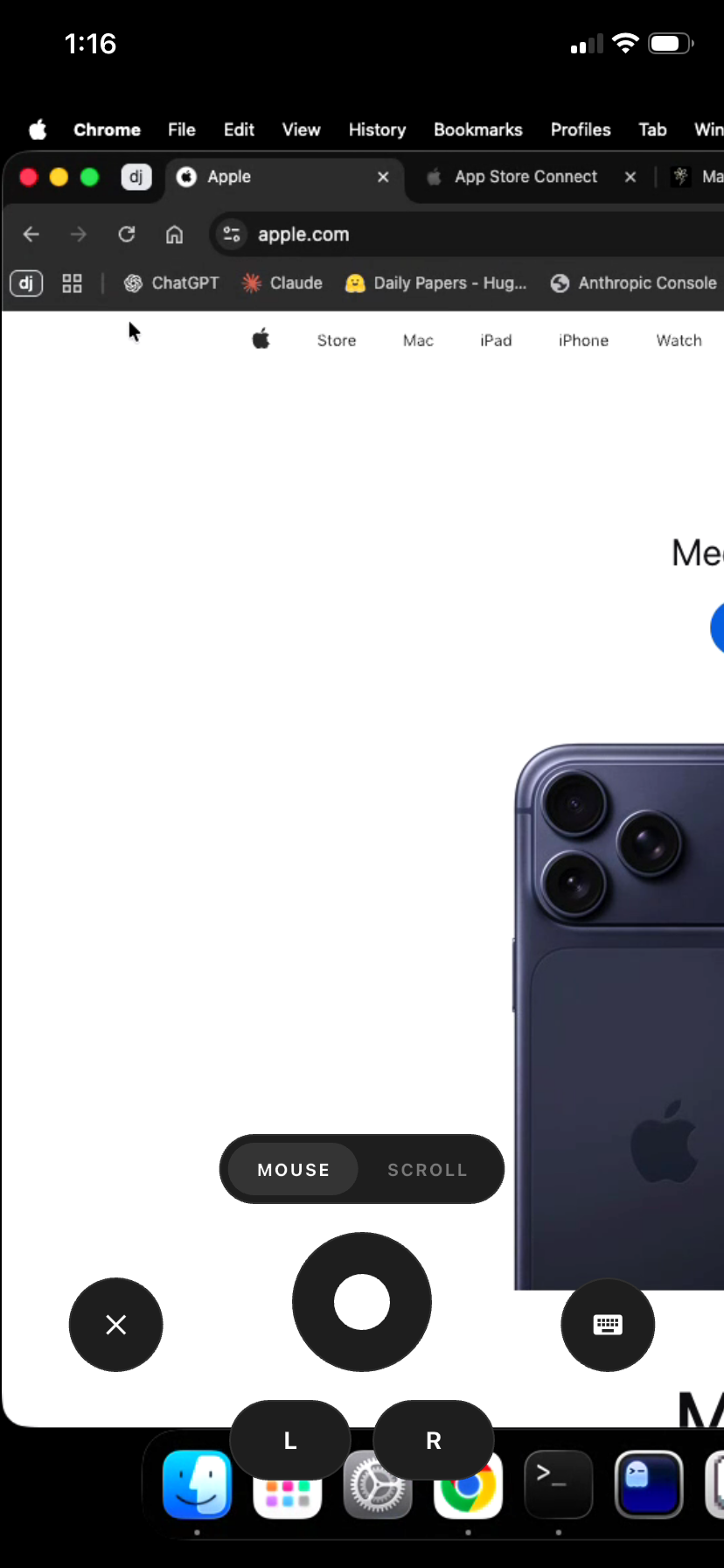
Terminal mode gives you real zsh or bash sessions. There are no open ports on your network and no VPN to set up. A master password protects the Mac, and each new iPhone must be approved on the Mac first.
Keep the Mac Awake
A sleeping Mac is unreachable. Apple's sleep and wake settings let you set your Mac to wake for network access. On a Mac laptop, open Options and turn on "Prevent automatic sleeping on power adapter when the display is off."
For a command-line approach, see caffeinate on Mac. For laptops, read How to Keep a MacBook Awake with Lid Closed.
Which Option Fits
| Option | What you need | Router changes |
|---|---|---|
| Tailscale plus Screen Sharing | Tailscale on both Macs, same account | None |
| SSH tunnel | Remote Login, dynamic DNS name | Port forward |
| Chrome Remote Desktop | Google account, Chrome, macOS permissions | None |
For a wider overview, see How to Access Your Mac Remotely.
FAQ
Can I remotely access my Mac from a different network?
Yes. Put both Macs on a Tailscale network, tunnel VNC over SSH, or use a remote desktop tool. Apple's built-in Screen Sharing is meant for Macs on the same network.
How do I use Screen Sharing over the internet?
The simplest route is Tailscale. Turn on Screen Sharing on the target Mac, install Tailscale on both Macs, and connect with vnc://<hostname> from Finder > Go > Connect to Server.
Do I need port forwarding to reach my Mac remotely?
Not with Tailscale. The SSH tunnel method needs a port forwarded on your router.
Does Back to My Mac still work?
No. Apple dropped Back to My Mac from macOS 10.14 Mojave and discontinued it for all other macOS versions as of July 1, 2019.
Can I reach my Mac if it goes to sleep?
No. The Mac has to be awake or set to wake for network access. Check Apple's sleep and wake settings or use a keep awake option.
Related Guides & Comparisons
Try Macky
Connect to your Mac terminal from your iPhone.