Tailscale Mac Remote Desktop: Screen Sharing Setup and Limits
Install Tailscale on both devices, turn on Screen Sharing on the Mac you want to reach, and connect with vnc:// plus its Tailscale name or IP address. Sleep and the Tailscale variant cause most of the trouble.
If you only want your Mac's screen and terminal on an iPhone, Macky does that without a VPN. See Tailscale vs Macky for the comparison.
Set Up Screen Sharing Over Tailscale
Tailscale has no official page for this. The steps come from user reports, so test them on your network.
- On the host Mac, open System Settings > General > Sharing and turn on Screen Sharing.
- Install Tailscale on both devices and sign in to the same account.
- On the client, open Screen Sharing and choose Connect to Server. Enter
vnc://plus the host's Tailscale name or IP address.
One user reports the MagicDNS name works without vnc://. Screen Sharing listens on port 5900.
Third-party VNC apps need one more switch. Click the Info button next to Screen Sharing and turn on "Allow VNC viewers to control screen with password". Then set a password.
Pick the Right Tailscale Variant
Tailscale recommends the Standalone variant. The Mac App Store variant is for when you can't use Standalone.
- Don't install both on one Mac. Both running can stop the Tailscale extension from launching.
- To switch, delete Tailscale.app and empty the Trash. Reboot before installing the other one.
- The Standalone variant installs a system extension. macOS shows "System Extension Blocked" until you approve it in System Settings.
Reach Your Mac Screen From Your iPhone
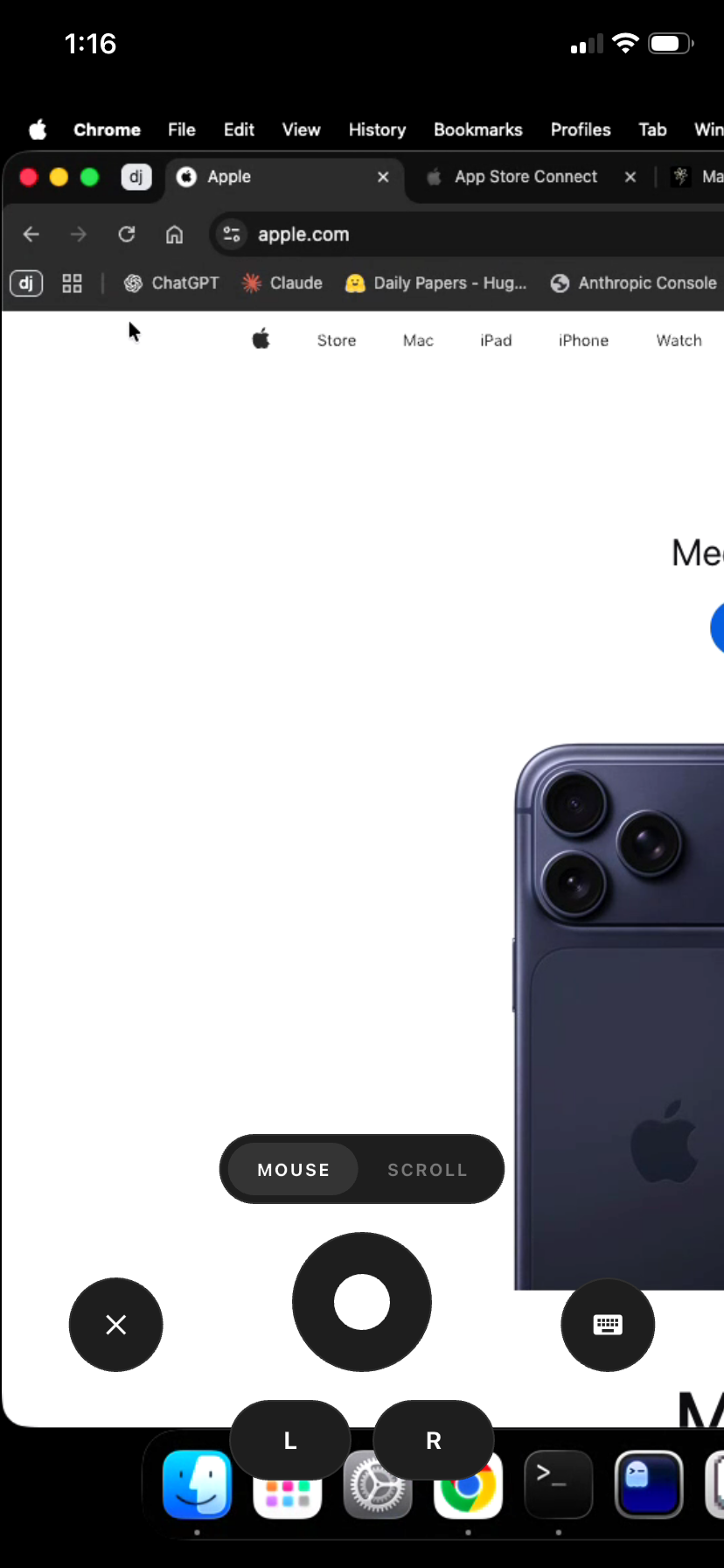
Macky connects your iPhone to your Mac's screen with end-to-end encrypted WebRTC. The server only introduces the two devices.
Screen mode gives you a trackpad-style cursor with adjustable speed. It also has scroll mode and drag mode. Left and right click buttons and an on-screen keyboard are built in. There are no open ports and no VPN to set up. A master password protects the Mac, and you approve each new iPhone on the Mac first.
Limits and Fixes
A sleeping Mac doesn't answer. Turn off sleep with caffeinate or see keeping a MacBook awake with the lid closed. Sources disagree on whether "Wake for network access" wakes a Mac for ordinary TCP traffic.
Sleep and wake can also break Tailscale itself. These are reports from the Tailscale GitHub repo, not confirmed fixes:
- Issue #20859: after sleep and wake, the Standalone extension stopped passing TCP traffic while ping still worked. Screen Sharing couldn't connect. A reboot fixed it.
- Issue #21650: after a sleep longer than about 3 minutes, traffic to a peer dropped for about 15 seconds. The reporter's workaround is
tailscale ping --tsmp <mac>from the peer.
If RustDesk shows a black screen, check Screen Recording permission on the host. See the RustDesk review.
What We Couldn't Confirm
We couldn't confirm whether Screen Sharing reaches a Mac at the login window after a reboot. For a Mac with no monitor, read the headless Mac mini guide.
FAQ
Does Tailscale allow Remote Desktop access?
Tailscale gives your devices a private network. Remote desktop tools run on top of it. Users report that macOS Screen Sharing works over a tailnet. We found no official Tailscale page covering it.
Can I use Tailscale on Mac?
Yes. Tailscale recommends the Standalone variant from its package server. The Mac App Store variant is for cases where you can't use Standalone.
Can I access Remote Desktop from Mac?
Yes. macOS has a built-in Screen Sharing app that connects to another Mac. See Mac to Mac Remote Desktop for local and internet setups. macOS doesn't offer RDP, which the RDP guide covers.
Why won't Tailscale open on my Mac?
The likely causes are a blocked system extension or two variants installed together. Approve the extension in System Settings. For the second cause, delete Tailscale.app and empty the Trash. Then reboot and install one variant.
Related Guides & Comparisons
Try Macky
Connect to your Mac terminal from your iPhone.