Mac Screen Sharing Not Working: Fixes That Work (2026)
Mac Screen Sharing usually fails for one of three basic reasons. It's turned off, you're not on the allowed list, or one Mac is asleep or on a different network. Check those first, in the order below.
If you need to reach your Mac from your phone while you sort it out, Macky puts your Mac's screen and terminal on your iPhone.
Turn on Screen Sharing and check permissions
Screen Sharing or Remote Management must be turned on, and sharing permissions set up, on the Mac whose screen you want to share. Do the following on that Mac:
- Choose Apple menu > System Settings.
- Click General in the sidebar, then click Sharing.
- Click the Info button next to Screen Sharing.
- Confirm you're in the list of users allowed to share its screen.
Wake both Macs
Neither Mac can be asleep. Adjust the sleep settings on each Mac if needed.
If a Mac keeps going to sleep, see caffeinate on Mac for a way to keep it awake. For a laptop with the lid shut, see how to keep a MacBook awake with the lid closed.
Put both Macs on the same network
Both computers must be on the same network. On each Mac, open System Settings > Network. The indicator for your connection type should be green. For Wi-Fi, click Wi-Fi to check the network name, and make sure it matches on both Macs.
If the Macs are on different networks, read Does Apple Remote Desktop Work Over the Internet?.
Reach your Mac when Screen Sharing won't connect
You can still reach your Mac from your iPhone if the checks above don't fix it. Macky shows your Mac's desktop on your phone with mouse and scroll controls.
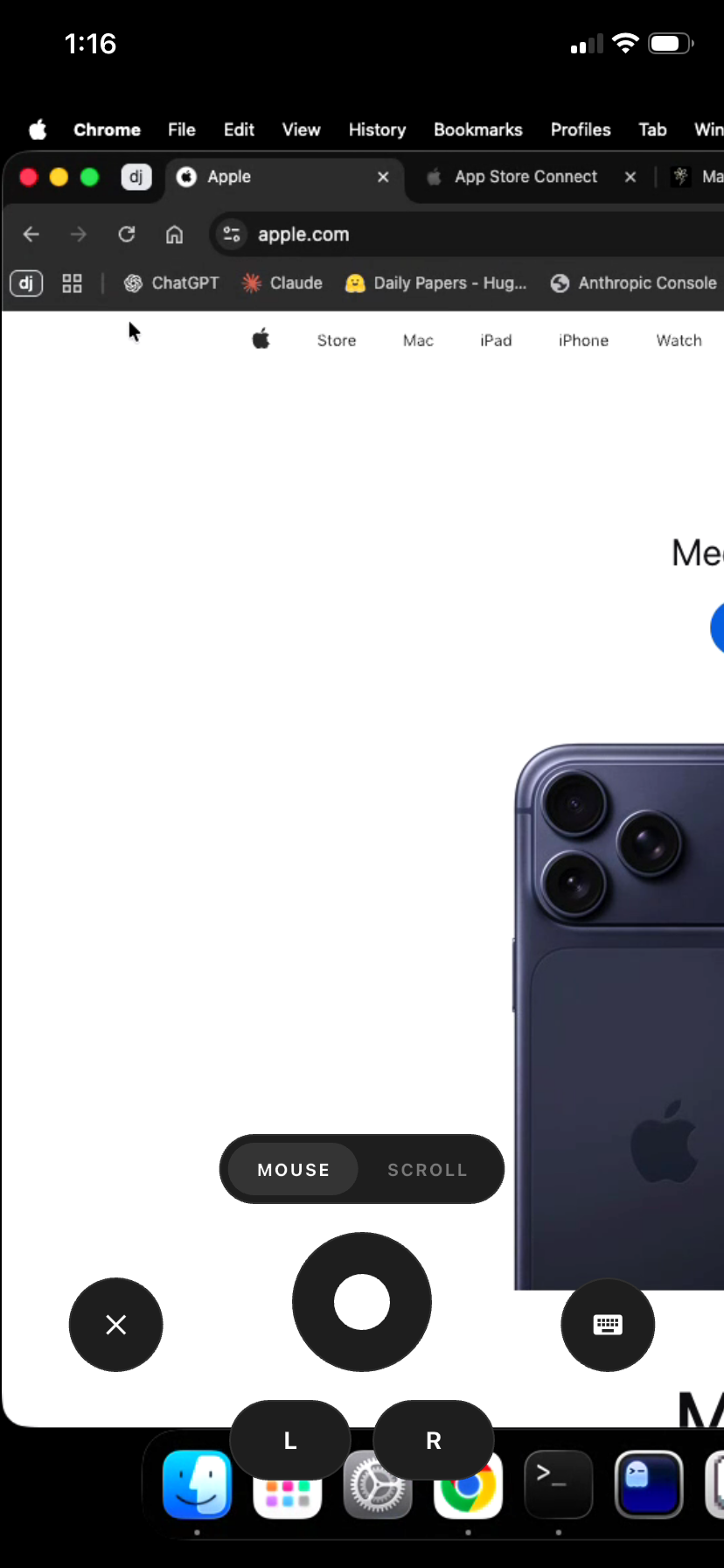
It also gives you your Mac's terminal. The connection is end-to-end encrypted and uses no open ports. Closed-lid access works too, so a MacBook with the lid shut stays reachable.
Teams, browsers, and mirroring
The steps above cover Screen Sharing between Macs. Teams, browsers, and AirPlay mirroring handle sharing in their own apps and settings. The Sharing pane won't fix them. Apple's AirPlay checklist says to make sure your devices are on and near each other. They should also be updated to the latest software.
More on Mac screen sharing
- Apple Remote Desktop vs Screen Sharing vs Remote Management
- Mac to Mac Remote Desktop
- Screens Connect Not Working? Four Ways to Connect to Mac Over Internet
FAQ
Why is my Mac not allowing Screen Sharing?
Screen Sharing or Remote Management has to be turned on for the Mac you want to reach, and you have to be in its list of allowed users. Check this in System Settings > General > Sharing, then click the Info button next to Screen Sharing.
Why isn't my Screen Sharing working?
Start with the basics from Apple's guide. Make sure Screen Sharing or Remote Management is on, confirm you're allowed to share the screen, and keep both Macs awake and on the same network.
Why won't Teams let me share my screen on my Mac?
Teams has its own screen sharing and it's separate from the Screen Sharing feature in System Settings. The steps in this guide don't cover it, so check Microsoft's Teams support pages.
Why isn't screen mirroring working on my Mac?
Screen mirroring uses AirPlay. Apple's AirPlay checklist says to make sure your AirPlay-compatible devices are turned on and near each other, and that they're updated to the latest software.
Can a sleeping Mac cause Screen Sharing to fail?
Yes. Apple says neither Mac can be asleep, so a Mac that dozes off will drop out of Screen Sharing. Adjust the sleep settings on each Mac if needed.
Related Guides & Comparisons
Try Macky
Connect to your Mac terminal from your iPhone.