Mac Screen Sharing Black Screen: Fixes (2026)
A black screen in Mac Screen Sharing usually comes from the sharing type, a missing Screen Recording permission, or a stuck session. Try Standard mode first. If that fails, turn Screen Sharing off and on again.
macOS shows no error message for this, so you have to work through the causes. If Screen Sharing keeps letting you down, Macky is another way to see your Mac's screen on your iPhone.
Why Screen Sharing Goes Black
| Cause | Fix |
|---|---|
| High Performance mode | Reconnect with Standard |
| Screen Recording permission not registered | Toggle Screen Sharing off and on |
| Stuck session | Log out on the remote Mac before disconnecting |
| Black screen after the session ends | Restart the remote Mac |
Fixes to Try in Order
1. Reconnect with Standard. When you start a new connection, Apple's "Select Screen Sharing Type" dialog offers "Standard" and "High Performance". High Performance needs Apple silicon and macOS Sonoma 14 or later. Apple says no one else can use that Mac while you're in a High Performance session. One Apple Discussions user reports it blanks the host's physical displays.
2. Reset the sharing service. Open System Settings > General > Sharing on the remote Mac. Uncheck "Screen Sharing" or "Remote Management", check it again, and authenticate. Edovia, the maker of Screens, says the service can run while macOS hasn't granted it screen-recording permission (TCC). This can follow a macOS update or Migration Assistant.
3. Clear a stuck session. Log out on the remote Mac before you disconnect. You can also quit "Screen Sharing" in Activity Monitor on the controlling Mac. One MacRumors user reported that the controlling Mac can hold on to the session.
4. Restart the remote Mac. One Apple Discussions user reported the screen stayed black after the session ended until the machine was restarted.
See Your Mac Screen From Your iPhone Instead
Macky shows your Mac's screen live on your iPhone. You get a trackpad-style cursor with a scroll mode and a drag mode. Left and right click buttons and an on-screen keyboard are there too.
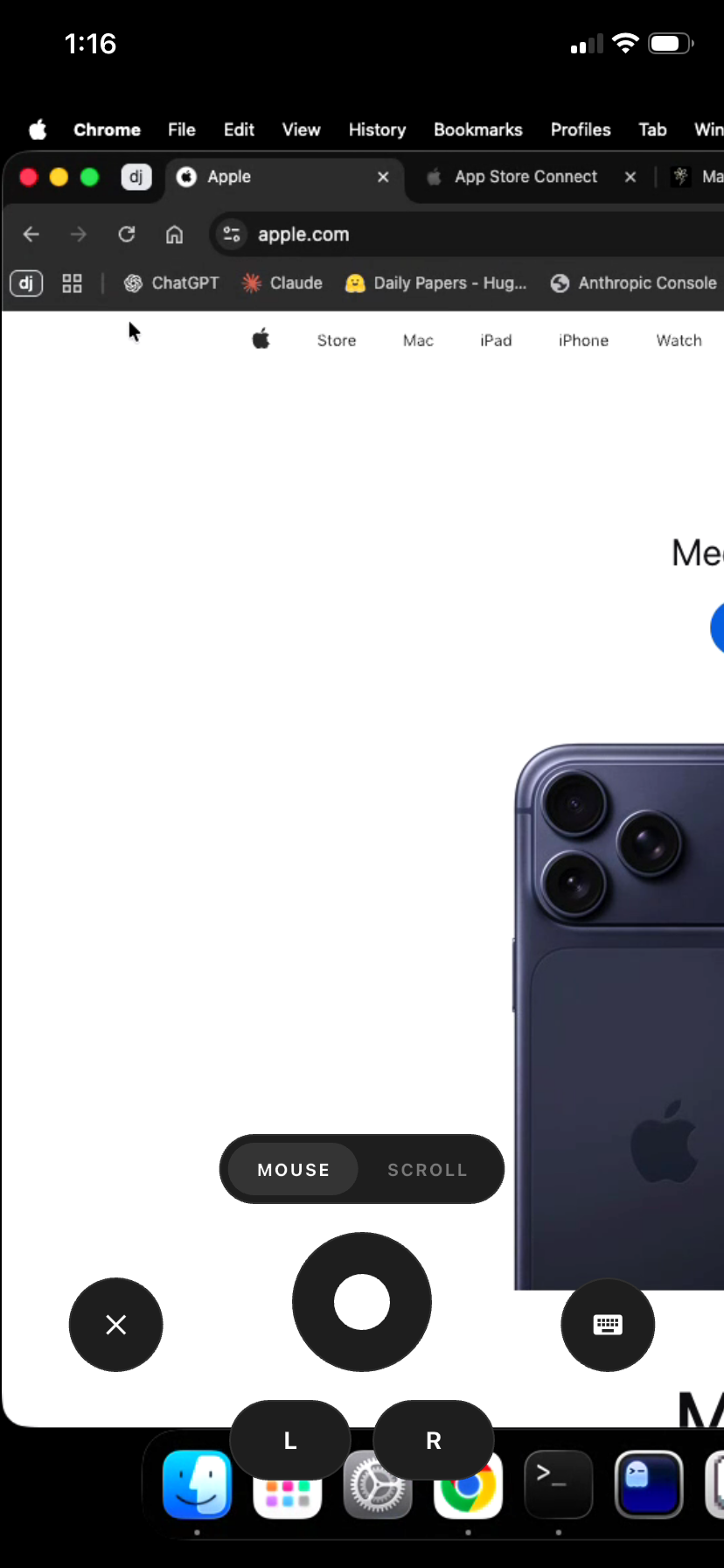
The connection is end-to-end encrypted WebRTC straight between your devices. There are no open ports and no VPN to set up. Each new iPhone has to be approved on the Mac, and a master password protects it.
If the Remote Mac Is Headless
A Mac can accept your login and still serve a black screen. A macrun.dev write-up says that since macOS 14, "Apple's own kickstart -activate refuses to run headless". It also says a monitor plugged into a Mac mini was black too, which points to the session and not the connection.
For a Mac without a display, see Mac mini Headless Setup. To compare the sharing options, read Apple Remote Desktop vs Screen Sharing vs Remote Management. For connecting from another Mac, see Mac to Mac Remote Desktop.
Other Black Screen Problems
This guide covers the Mac's built-in Screen Sharing. Black screens in Zoom, Teams, FaceTime, Discord, and AirPlay mirroring have their own causes.
FAQ
Why is my screen black while screen sharing?
The usual causes are High Performance mode, a Screen Recording permission that macOS hasn't registered, or a session that's stuck. Apple shows no error for it, so work through the fixes above in order.
Why is screen sharing not working on my Mac?
Apple says to confirm that Screen Sharing or Remote Management is turned on and that sharing permissions are set on the Mac you want to share. Check this in System Settings > General > Sharing.
How do I force quit Screen Sharing on a Mac?
On the controlling Mac, open Activity Monitor and quit "Screen Sharing". One MacRumors user reported this clears a stuck black session. It's a single user report, not Apple documentation.
Should I use Standard or High Performance?
Apple lets you pick a type each time you start a connection. Use Standard if High Performance gives you trouble. High Performance needs Apple silicon and macOS Sonoma 14 or later.
Related Guides & Comparisons
Try Macky
Connect to your Mac terminal from your iPhone.