Mac Screen Sharing Display Sleeps: How to Keep It Awake
Your Mac's display turns off during Screen Sharing because the display timer ran out or the whole Mac went to sleep. Lengthen the timer in System Settings > Lock Screen, turn on the no-sleep toggle, or run caffeinate -d.
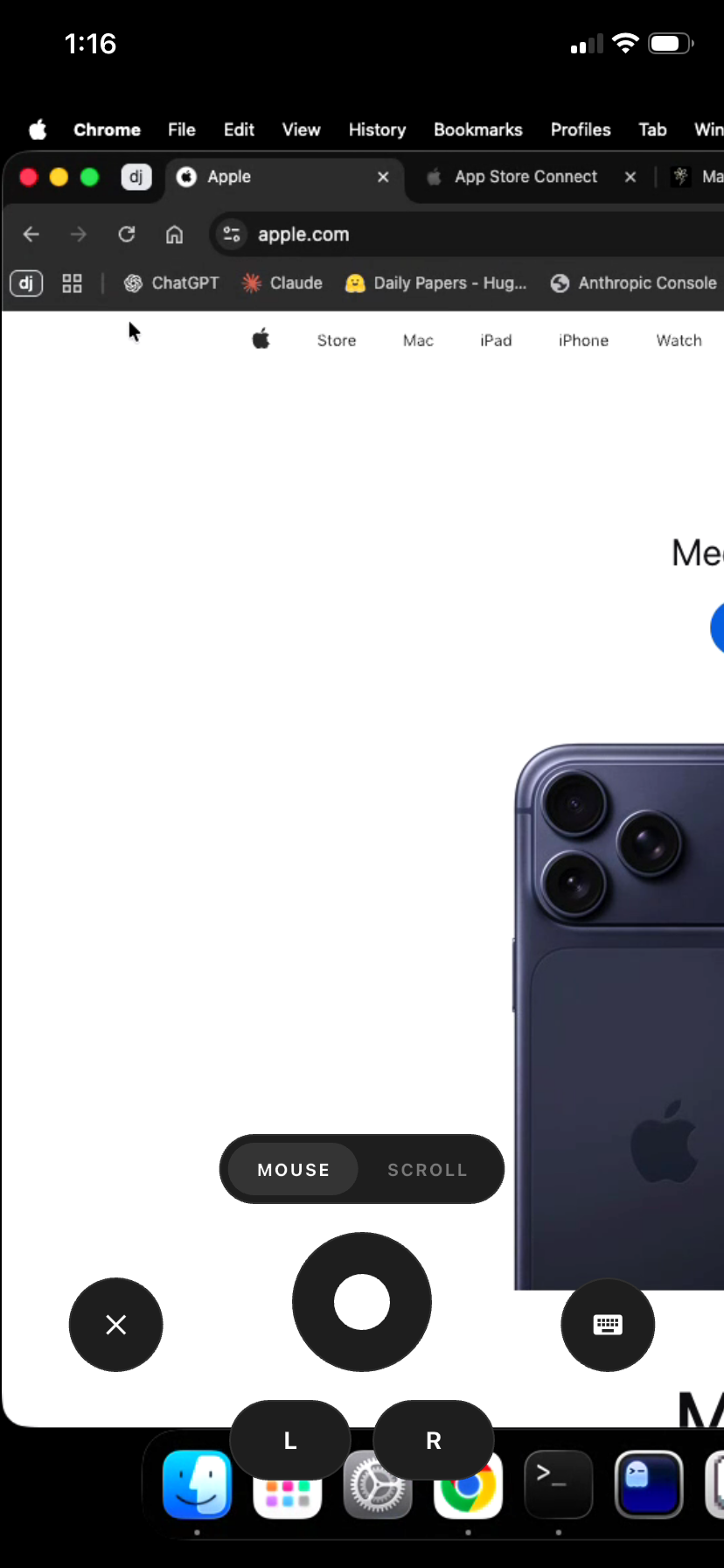
If you'd rather check your Mac from your iPhone, Macky puts its screen and terminal on your phone.
Why the display sleeps during Screen Sharing
Two separate timers are involved. One turns the display off. The other puts the whole Mac to sleep. A black screen in your viewer usually means one of them fired. Screen capture stops delivering frames when the display sleeps, so the viewer shows black or freezes.
Fix 1: Lengthen the display timer
Open System Settings > Lock Screen. Raise the display timer. The two menus are:
Turn display off on battery when inactiveTurn display off on power adapter when inactive
If "Never" isn't offered, pick the longest time available. Apple warns that delaying or preventing sleep can increase power consumption.
Fix 2: Stop the whole Mac from sleeping
This keeps the Mac running after the display goes dark. The label depends on your Mac:
| Mac | Where to find it | Setting |
|---|---|---|
| Desktop | System Settings > Energy | Prevent automatic sleeping when the display is off |
| Laptop | System Settings > Battery > Options | Prevent automatic sleeping on power adapter when the display is off |
Also turn on Wake for network access in the same pane. Apple says it lets a sleeping Mac wake when someone uses its shared resources.
Fix 3: Run caffeinate -d
Run this in Terminal to hold the display on:
caffeinate -dThe -d flag keeps the display on. The -i flag stops idle sleep, but the screen can still turn off. Press Control-C to stop. More flags and timers are in caffeinate on Mac.
Check on your Mac from your iPhone
Macky gives you your Mac's screen and terminal on your iPhone. You can open a Terminal session and run caffeinate -d from your phone without sitting at the desk. Macky is end-to-end encrypted and uses no open ports. Closed-lid access works too.
If the screen is still black
If the timers are fine and the screen is still black, check these:
- Locked Mac: sign in, or check whether it's sitting at the login window.
- Screen Recording: make sure the sharing app is allowed under System Settings > Privacy & Security > Screen & System Audio Recording.
- No display attached: a headless Mac mini or Mac Studio may need a display or an HDMI dummy plug. See the headless Mac mini guide.
Laptops and closed lids
A closed MacBook lid can still put the Mac to sleep. Follow how to keep a MacBook awake with the lid closed. For the differences between Apple's sharing tools, see Apple Remote Desktop vs Screen Sharing.
FAQ
How can I keep my Mac display awake when it's off?
Turn on the sleep toggle so the Mac stays awake after the display turns off. On a desktop, that's System Settings > Energy > "Prevent automatic sleeping when the display is off". To keep the display itself lit, lengthen the Lock Screen timer or run caffeinate -d.
Why does my MacBook screen share keep turning off?
The usual cause is the display timer, which turns the screen off after a set time. The whole Mac can also sleep after the display goes dark. A locked Mac or a missing Screen Recording permission can give a black screen too.
How do I stop my Mac from sleeping when connected to an external monitor?
The same two settings apply: the display timer under Lock Screen and the "Prevent automatic sleeping" toggle. Closed-lid setups are separate, and the lid-closed guide linked above covers them.
Why is my Mac going to sleep even with video playing?
We couldn't confirm why this happens in every case. Set the display timer longer or run caffeinate -d while the video plays.
Related Guides & Comparisons
Try Macky
Connect to your Mac terminal from your iPhone.