Mac Screen Sharing Over Cellular: What Works in 2026
Built-in Screen Sharing is a local-network feature. It won't reach your Mac from a cellular connection without extra setup.
You have three ways around that: Messages or FaceTime for sharing with a person, port forwarding on your router, or an app built for remote access. Macky is one of those apps, and it shows your Mac's screen on your iPhone.
Why Screen Sharing Stops Working Away From Home
Screen Sharing on a Mac uses a built-in VNC server. It's designed for devices on the same network. One vendor blog says it runs over port 5900 and fails to find or reach the Mac once you leave the home network.
Apple doesn't document cellular specifically. For more, see Does Apple Remote Desktop Work Over the Internet?
Share With a Person: Messages or FaceTime
Messages and FaceTime can share a screen over the internet. You start from a conversation with the other person's Apple ID.
In Messages, open the conversation and use the sharing option in the Conversation menu. Labels vary by macOS version, for example "Invite to Share My Screen" or "Ask to Share Screen". In FaceTime, click Share in the call controls, then choose "Share My Screen" or "Ask to Share".
The other person has to be there and accept.
Forward Port 5900 on Your Router
A vendor blog lists forwarding port 5900 on your router to the Mac. That needs a static IP address or dynamic DNS so you can find your home network from outside. It also opens a port on your router.
For a comparison of the options, read How to Share Your Mac Screen Over the Internet.
Reach Your Mac Screen From Your iPhone
Macky puts your Mac's screen and terminal on your iPhone. In screen mode you get a mouse and scroll controls for the Mac desktop.
Connections are end-to-end encrypted and use no open ports. Nothing gets forwarded on your router, and you don't need a static IP.
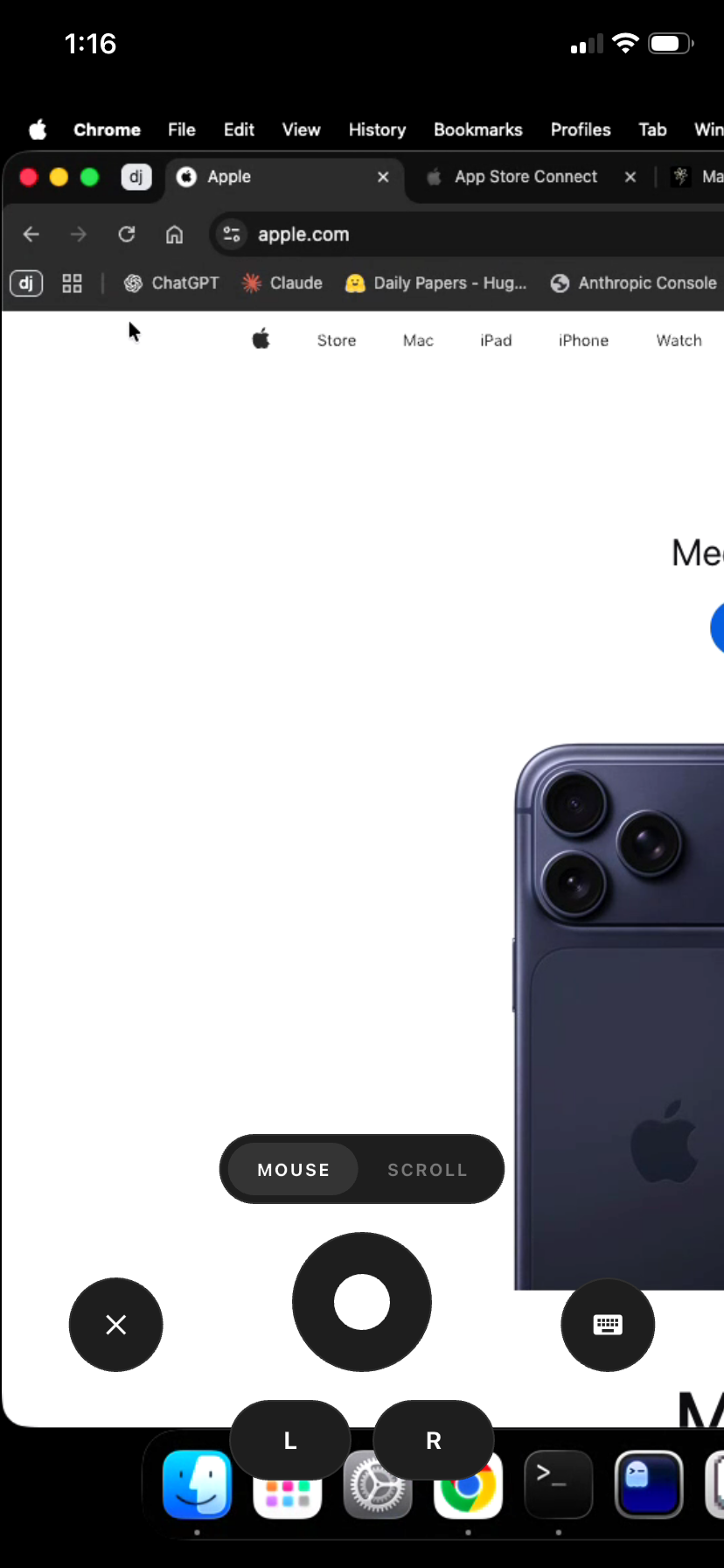
See How to View and Control Your Mac Screen on iPhone for the walkthrough.
What High Performance Mode Needs
macOS Sonoma added High Performance mode for lower latency. Apple lists strict requirements, and none of them mention cellular.
| Requirement | Detail |
|---|---|
| Hardware | Both Macs are Apple silicon |
| Software | Both Macs run macOS Sonoma 14 or later |
| Ports | UDP ports 5900, 5901, and 5902 open between the Macs |
| Bandwidth | Apple gives 75 Mbps for a single 4K display, with consistently low latency |
| Connection | Wired recommended |
Only one High Performance session can run per Mac at a time. Signing in as the user logged in to the target Mac blanks its physical displays during the session.
Test From Another Network
To test whether your setup works from outside your network, try a cellular connection or a phone hotspot. If the connection fails there but works at home, the network path is the problem.
Also check that Screen Sharing is on in System Settings > General > Sharing. For more on the built-in options, see Apple Remote Desktop vs Screen Sharing vs Remote Management.
FAQ
Can you screen share to a Mac without Wi-Fi?
The Mac still needs a network connection. An iPhone's Personal Hotspot can supply internet to a Mac. Apple doesn't document Screen Sharing over cellular specifically.
Why isn't my Mac allowing screen sharing?
Check that Screen Sharing is on in System Settings > General > Sharing. The users you allow need login accounts on the Mac. Screen Sharing and Remote Management can't both be on at once, so turn one off.
How to share screen through LAN?
Turn on Screen Sharing in System Settings > General > Sharing. Then open the Screen Sharing app on another Mac on the same network and enter the host Mac's name or address.
How do I share my Mac screen with my phone?
Apple has no general Screen Sharing client for iPhone. A third-party app such as Macky puts your Mac's screen on your iPhone.
Related Guides & Comparisons
Try Macky
Connect to your Mac terminal from your iPhone.