Mac Remote Desktop for Working From Home (2026)
The right Mac remote desktop depends on what you're connecting to. For a Windows work PC, use Microsoft's Windows App. For another Mac, use the Screen Sharing app that's already built into macOS.
Microsoft retired its old Remote Desktop client for Mac, so older guides point to a download that's gone. If you want your home Mac on your iPhone while you work, Macky puts its screen and terminal there.
Which Tool Fits Your Situation
| You want to reach | Use | Where to get it |
|---|---|---|
| A Windows work PC | Windows App | Mac App Store |
| Another Mac on your network | Screen Sharing | Built into macOS |
| Many Macs you manage | Apple Remote Desktop | Mac App Store (paid) |
Connect to a Windows Work PC
- Install Windows App from the Mac App Store.
- On the Windows PC, turn on Remote Desktop. On Windows 11 that's Settings > System > Remote Desktop > On.
- Open Windows App and choose "Add a remote PC".
- Enter the PC details your IT team gives you.
Windows App also connects to Azure Virtual Desktop and Windows 365.
The Windows PC needs to run Pro or Enterprise. University help pages say Home editions don't accept incoming connections.
Connect to a Mac With Screen Sharing
- Open System Settings > General > Sharing.
- Turn on Screen Sharing.
- Click the Info button and use the "Allow access for" menu to choose who can connect.
- On the other Mac, open the Screen Sharing app. Click Network or All Connections in the sidebar, then click Connect.
Screen Sharing and Remote Management can't be on at the same time. If Remote Management is on, turn it off first.
Apple's pages describe Screen Sharing for computers on your network. Apple Remote Desktop is a separate app for managing Macs on your network, with software distribution and remote assistance. Apple Remote Desktop vs Screen Sharing covers the differences.
See Your Home Mac From Your iPhone
Macky is a Mac app plus an iPhone app. Its Screen mode shows your Mac's screen live on your iPhone. You get a trackpad-style cursor, a scroll mode, and click buttons.
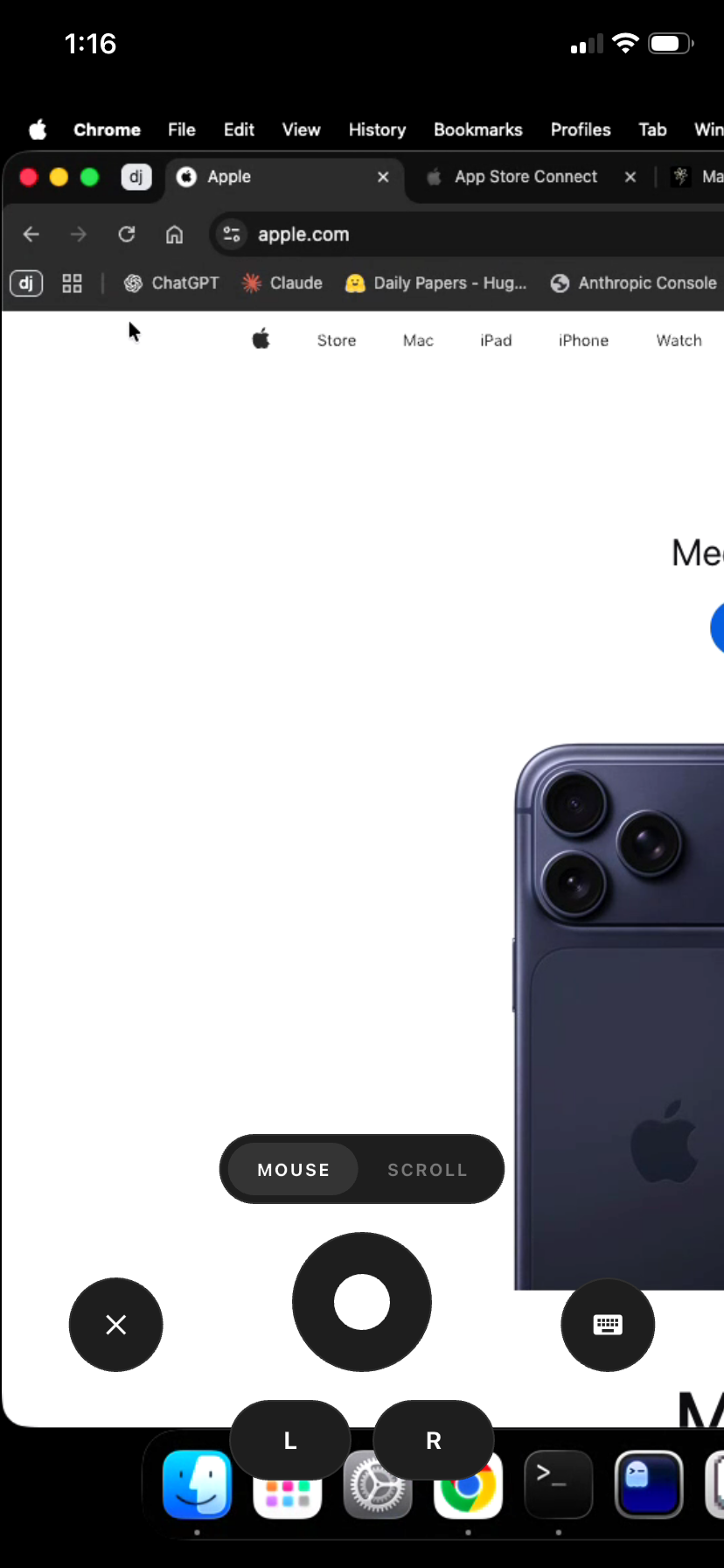
The connection is end-to-end encrypted WebRTC straight between your devices. There are no open ports and no VPN to set up. Each new iPhone must be approved on the Mac. Macky works between Macs and iPhones only, so it won't reach a Windows work PC.
Other Remote Desktop Apps
Jump Desktop and AnyDesk also show up for this search, as do Splashtop and Parsec. See Best Remote Desktop for Mac in 2026 for a comparison. Parsec and Splashtop have their own guides: Parsec on Mac and Splashtop for Mac.
Check With IT First
Ask your IT team how to connect from home first. They may give you a VPN or gateway address to enter in Windows App.
FAQ
Does Mac have a built-in Remote Desktop?
Yes, in part. macOS includes Screen Sharing, which lets other computers on your network view and control your Mac. Apple Remote Desktop is a separate paid app from the Mac App Store for managing Macs on your network.
Is there an equivalent of Remote Desktop for Mac?
For a Windows PC, Microsoft's Windows App replaces its old Remote Desktop client for Mac. For another Mac, use Screen Sharing. For a Mac you want on your iPhone, Macky is an option.
How do I Remote Desktop to my work computer from home?
Install Windows App from the Mac App Store, turn on Remote Desktop on the work PC, then choose "Add a remote PC" and enter the details. Ask your IT team first, since they set the rules for reaching the PC from home.
How do I remotely access my Mac at home?
On the same network, turn on Screen Sharing in System Settings > General > Sharing and connect from another Mac. From outside your network, Macky shows your Mac's screen on your iPhone over an end-to-end encrypted connection. See How to Access Your Mac Remotely for more.
Related Guides & Comparisons
Try Macky
Connect to your Mac terminal from your iPhone.