Mac Remote Desktop Low Latency: How to Cut Lag (2026)
The biggest latency cut on a Mac remote desktop is Apple's High Performance screen sharing over a wired connection. It needs Apple silicon Macs running macOS Sonoma 14 or later.
If your Macs don't qualify, a quality setting in standard Screen Sharing helps. If you just need your Mac's screen on a phone, Macky does that on iPhone.
Turn On High Performance Screen Sharing
Apple says High Performance mode needs high bandwidth and consistently low network latency. Check these before you turn it on:
- Apple silicon on both Macs
- macOS Sonoma 14 or later on both Macs
- Bandwidth of 75 Mbps for a single 4K display
- UDP ports
5900,5901, and5902open between the two Macs - A wired network connection, which Apple recommends
In Apple Remote Desktop, the "Select Screen Sharing Type" pane lets you pick "High Performance" or "Standard". To change it later, choose File > Get Info and open Control & Observe. Then use Screen Sharing Type at the bottom.
Apple doesn't publish how much latency this mode removes. It only gives the bandwidth requirements.
Know the limits
- Only one High Performance session can run on each Mac at a time.
- If you authenticate with the logged-in user's name, the target Mac's displays go blank and nobody else can use it.
- Press Escape on a keyboard connected to the target Mac to end the session. This works when Screen Sharing is on, but not when Remote Management is on.
Change the Quality Setting in Standard Mode
Open Screen Sharing > Preferences and look under Quality. "Adapt quality to network conditions" shows the screen faster. "Show the screen at full quality" gives more detail.
Pick the first option when the picture lags. Pick the second when you're on a fast, steady link and need sharp text.
Reach Your Mac Screen From Your iPhone
Macky puts your Mac's screen on your iPhone with mouse and scroll controls.
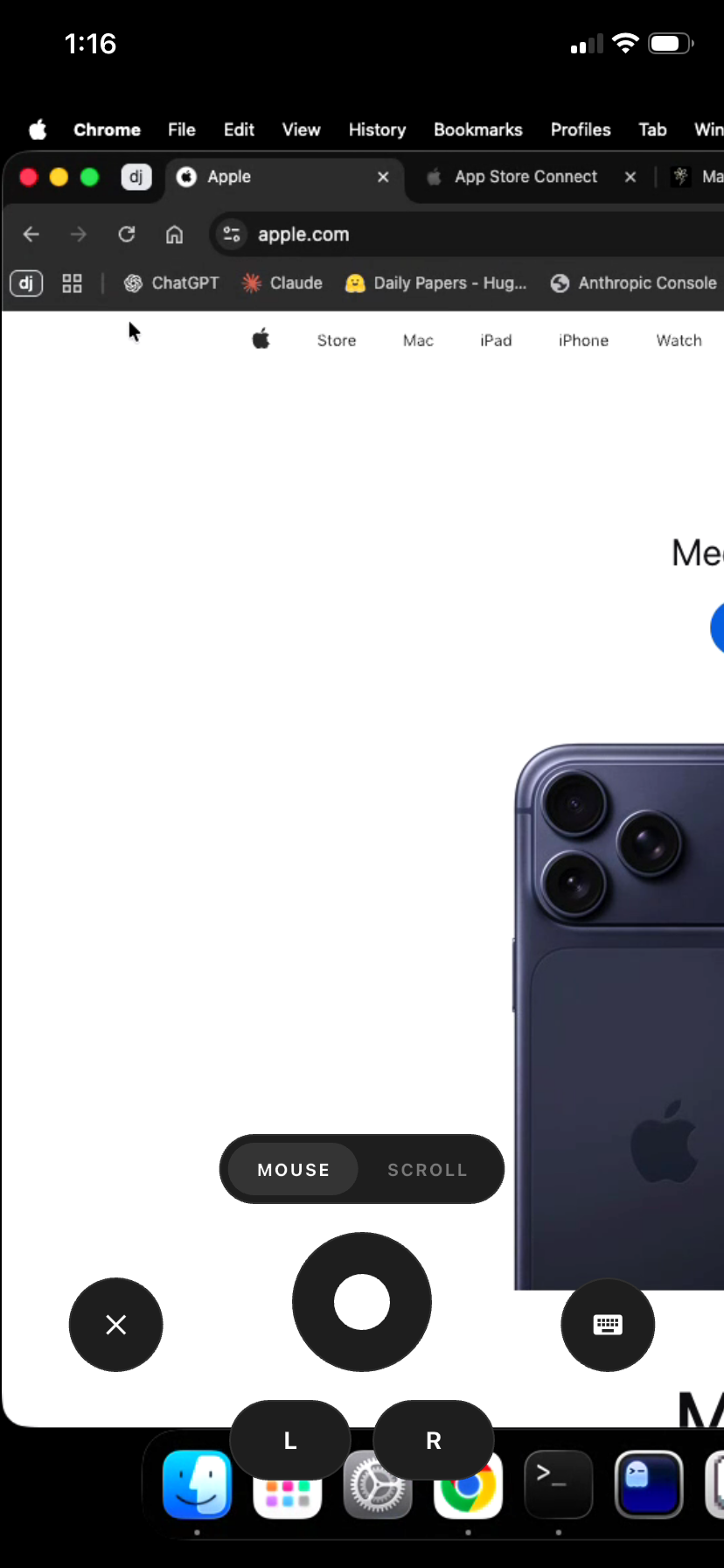
It connects over WebRTC, so you don't open ports or set up UDP rules on your router. The connection is end-to-end encrypted. For the technical background, read why VNC lags over 5G.
Fix the Network First
Plug the Mac you're connecting to into Ethernet. Jump Desktop also recommends a wired connection on the Mac or PC side. A steady connection matters as much as raw speed.
Apple's docs don't say whether High Performance mode works through NAT. If your Macs are on different networks, read Does Apple Remote Desktop Work Over the Internet?.
Try Jump Desktop's Low Latency Audio Option
In Jump Desktop, open Jump Desktop > Preferences > General and turn on "low latency audio". Jump's release notes say it gives the lowest Fluid audio latency at the cost of some energy use.
Jump says Fluid can reach 60 fps with about 10 ms audio latency over a good connection. That figure comes from the vendor. For a comparison, see Screens 5 vs Jump Desktop.
FAQ
How to reduce latency on remote desktop?
Use a wired connection on the Mac side and turn on High Performance screen sharing if both Macs are Apple silicon on macOS Sonoma 14 or later. In standard Screen Sharing, choose "Adapt quality to network conditions" under Screen Sharing > Preferences.
What is the lowest latency remote desktop?
We found no independent latency measurements, so we can't name a winner. Apple's High Performance screen sharing is built for low latency on Apple silicon Macs. Jump Desktop says its Fluid protocol reaches 60 fps over a good connection, but that is a vendor claim.
Is RDP being discontinued?
We found no confirmed announcement either way, so we won't guess. For Mac remote desktop options that don't depend on RDP, see Best Remote Desktop for Mac in 2026.
How to fix latency issues on Mac?
For remote sessions, use a wired connection and confirm you have steady bandwidth. Apple lists 75 Mbps for a single 4K display in High Performance mode. In standard mode, switch Quality to "Adapt quality to network conditions".
Related Guides & Comparisons
Try Macky
Connect to your Mac terminal from your iPhone.