Control Mac From iPhone Free: What Actually Works (2026)
You can control a Mac from an iPhone for free with Apple's built-in Control Nearby Devices, Chrome Remote Desktop, or Splashtop Personal. Each one has limits.
If you want your Mac's screen and a real terminal on your iPhone, Macky is another route, covered below.
Apple's Control Nearby Devices
Apple's built-in option works through Switch Control, an accessibility feature. On your iPhone, go to:
Settings > Accessibility > Control Nearby DevicesTap Control Nearby Devices, choose your Mac, and tap the buttons that match its controls. Your Mac and iPhone must be on the same Wi-Fi network and signed in to the same Apple Account.
On the Mac, Apple's Switch Control page points to System Settings > Accessibility > Switch Control. To stop, tap the Close button on the iPhone.
Apple only describes same-network use.
Chrome Remote Desktop
Third-party guides describe Chrome Remote Desktop as free. You install the Chrome extension and host on your Mac, sign in with a Google account, and set a PIN. Then you sign in to the iOS app with the same Google account.
Those guides are older, so check Google's own pages first. Our post Chrome Remote Desktop on Mac covers setup and limits.
Splashtop Personal
Splashtop's product page says Splashtop Personal is free for personal, non-commercial use on your local home network. Access from anywhere needs the paid Anywhere Access Pack, which covers up to 2 computers. The App Store lists the iPhone app as Free with in-app purchases.
More detail is in Splashtop for Mac.
When You Want the Screen or a Shell on Your iPhone
Macky is a Mac app plus an iPhone app. Its Screen mode shows your Mac's live screen. You get a trackpad-style cursor with adjustable speed, scroll and drag modes, and left and right click buttons.
Its Terminal mode opens real zsh or bash sessions on the Mac. The connection is end-to-end encrypted WebRTC between your devices, with no open ports and no VPN to set up.
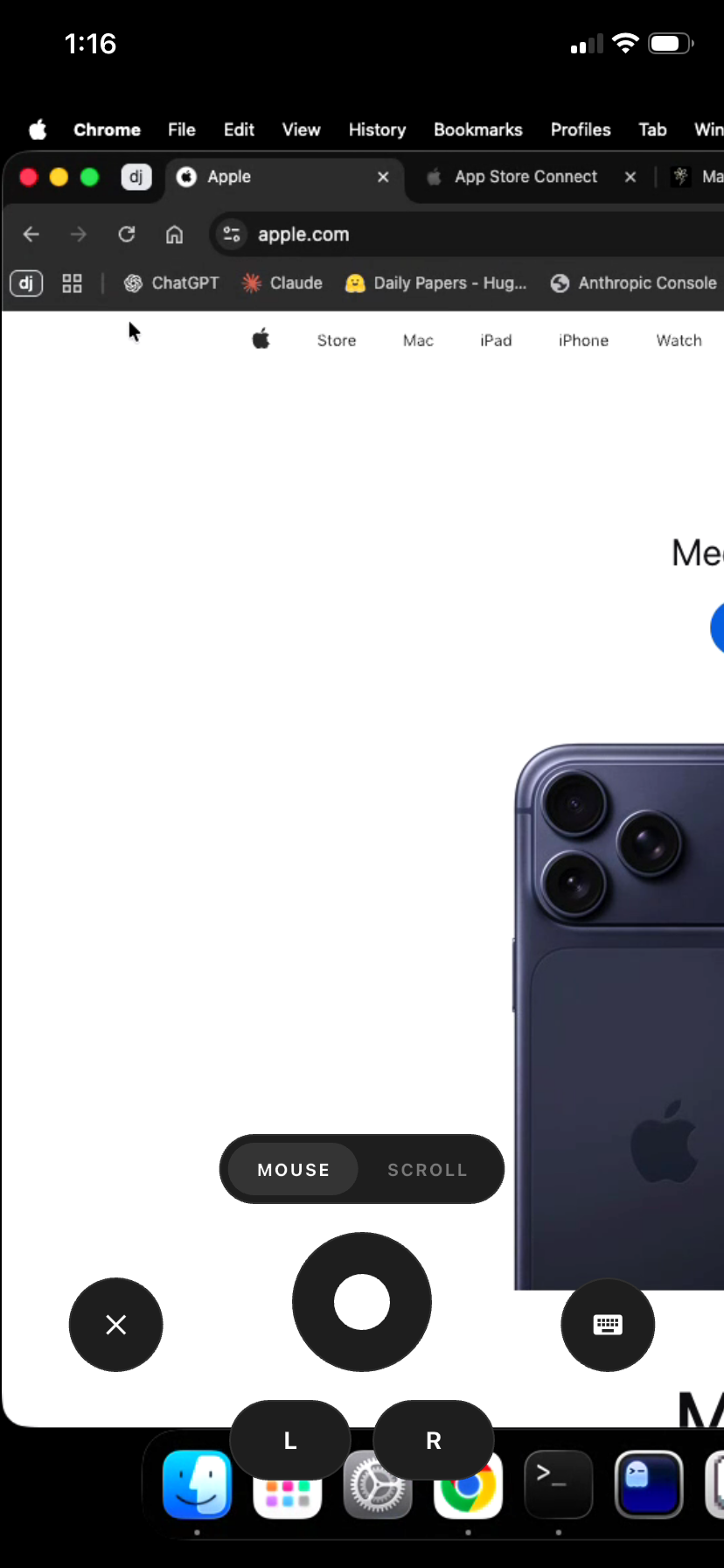
A master password protects the Mac, and each new iPhone must be approved on the Mac first. See How to Control Your Mac from iPhone for the walkthrough.
The Free Options Side by Side
| Option | Network | Setup |
|---|---|---|
| Control Nearby Devices | Same Wi-Fi and Apple Account | Settings > Accessibility > Control Nearby Devices |
| Chrome Remote Desktop | Described as free by third-party guides | Chrome extension, Google account, PIN |
| Splashtop Personal | Free on your local network; anywhere access is a paid pack | Splashtop app on iPhone plus a streamer on the Mac |
Check These Before You Start
- Use the same Wi-Fi network for Apple's built-in option.
- Sign in to the same Apple Account on both devices.
For more tools, read Best Remote Desktop for Mac.
FAQ
Can I use my iPhone to control my computer?
Yes. Apple's Control Nearby Devices lets an iPhone control a Mac on the same Wi-Fi network when both are signed in to the same Apple Account. Remote desktop apps such as Chrome Remote Desktop and Splashtop Personal also reach a Mac from an iPhone.
Can I use my iPhone as a clicker for my Mac?
Apple's pages describe Control Nearby Devices as tapping buttons that match the Mac's controls. We couldn't confirm a pointer or a clicker mode there. Remote desktop apps that show your Mac's screen give you a cursor and click buttons.
How can I use my phone to control my Mac?
On the same Wi-Fi, go to Settings > Accessibility > Control Nearby Devices on your iPhone and pick your Mac. Away from home, you need a remote access app that connects over the internet.
How can I remotely control my Mac?
Apple's built-in option only covers a shared Wi-Fi network. For internet access, use a remote access app such as Chrome Remote Desktop, Splashtop, or Macky. See How to Access Your Mac Remotely for more approaches.
Related Guides & Comparisons
Try Macky
Connect to your Mac terminal from your iPhone.