Run AI Job Overnight on Mac: Keep It Awake Until Done
To run an AI job overnight on a Mac, start it with caffeinate -i in front of the command. A desktop Mac like a Mac mini also has a setting for this: "Prevent automatic sleeping when the display is off" in System Settings > Energy.
Either way, the Mac stays awake while the job runs. Macky puts your Mac's terminal on your iPhone, so you can check the job without getting out of bed.
Wrap the Job in caffeinate
caffeinate ships with macOS at /usr/bin/caffeinate. Put it in front of any command and the Mac is kept from sleeping while that command runs. It releases when the command exits.
caffeinate -i ./run-job.sh > job.log 2>&1The redirect writes output to job.log, so you can read progress later. The flags you'll use most:
| Flag | What it does |
|---|---|
-i | Prevents idle system sleep |
-s | Prevents system sleep. Valid only on AC power |
-d | Prevents display sleep |
-t 28800 | Sets a timeout in seconds (28800 is 8 hours) |
Running caffeinate with no command holds the Mac awake until you close that terminal session. For more patterns, see caffeinate on Mac.
Set the Mac to Stay Awake
On a desktop Mac, open System Settings > Energy and turn on "Prevent automatic sleeping when the display is off". Apple notes that this may increase power consumption.
On a MacBook, sleep settings live under System Settings > Battery > Options. Plug the Mac into power before you leave it.
Closing the lid is a separate problem. Apple's closed-display setup is a power adapter, an external display, and an external keyboard and mouse or trackpad. Macky's Mac app has a keep awake switch and a closed-lid mode, covered in keeping a MacBook awake with the lid closed.
Check the Job From Your iPhone
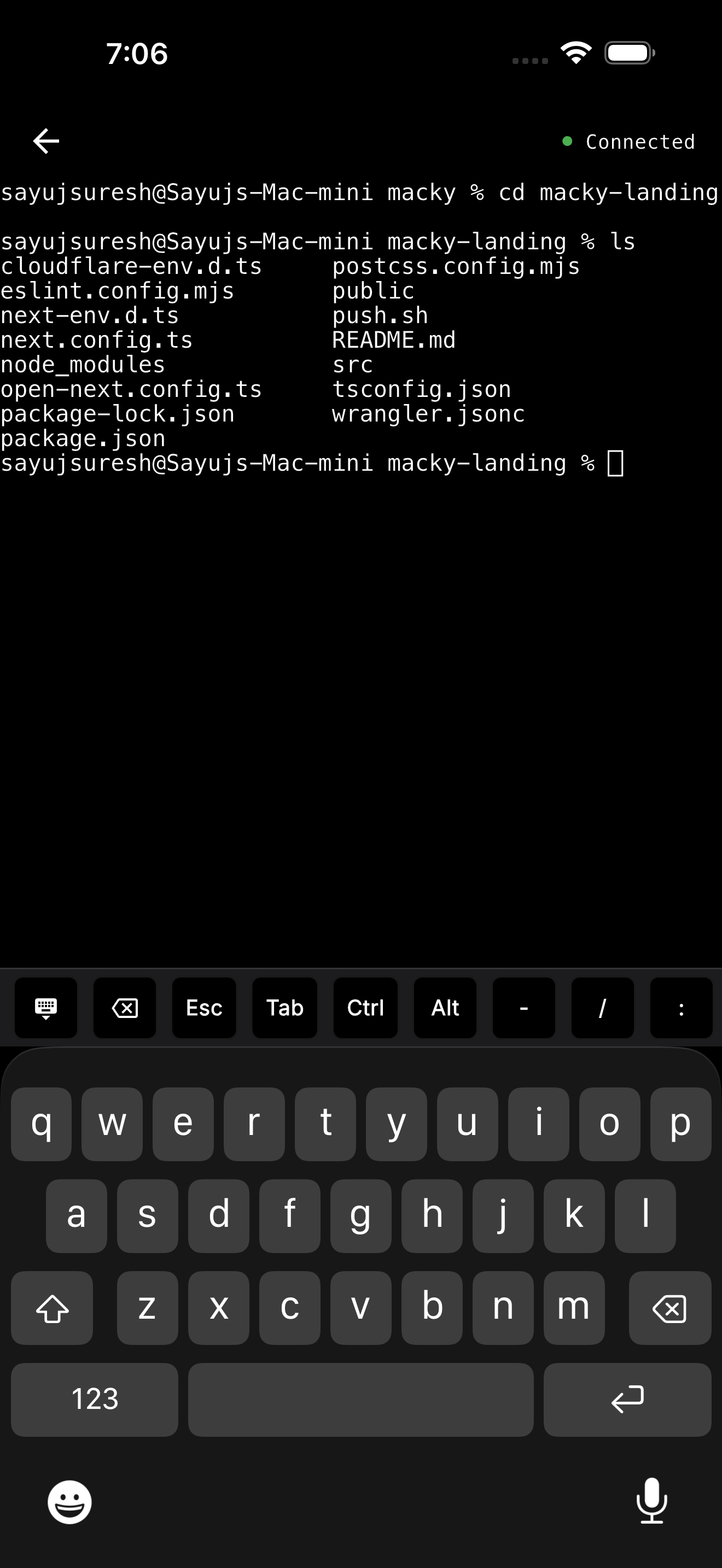
Macky gives you a real shell on your Mac from your iPhone. Open a Terminal session, run tail -f job.log, and watch the output from anywhere.
The connection is end-to-end encrypted WebRTC with no open ports on your network.
Macky also lets you detach from a session and attach again later. If the job needs a keypress, use the key bar. It covers Esc and Tab. It also has Ctrl and the arrow keys.
Use a Mac mini for Always-On Jobs
A desktop Mac stays on power all day, which fits long jobs. See the Mac mini home server guide for a setup that stays on.
Before You Go to Bed
- Plug the Mac into power.
- Start the job with
caffeinate -iand send output to a log file. - Run a short test job first and confirm the Mac stays awake.
- Open the log from your iPhone to confirm the job is moving before you sleep.
FAQ
Will my Mac sleep while an AI job is running?
Yes, by default. Idle sleep can stop a job on a Mac you walk away from. Start the job with caffeinate -i in front of it, or on a desktop Mac turn on "Prevent automatic sleeping when the display is off".
How do I keep my Mac awake until a job finishes?
Yes. Run caffeinate -i <command> and the Mac stays awake until that command exits. Per the man page, -s also prevents system sleep, but it is valid only on AC power.
Can a MacBook run a job with the lid closed?
Apple's closed-display setup uses a power adapter, an external display, and an external keyboard and mouse or trackpad. Macky's Mac app also has a keep awake switch and a closed-lid mode for remote access.
Can I check on an overnight job from my iPhone?
Yes. Connect to a Terminal session on the Mac from the Macky iPhone app and read the job's log file. You can also switch to Screen mode to see the desktop.
Does a locked screen stop the job?
Not confirmed. We didn't verify whether a screen lock stops running jobs, so test with a short job before you rely on it.
Related Guides & Comparisons
Try Macky
Connect to your Mac terminal from your iPhone.