Mac mini Auto Login After Reboot: Setup and Fixes (2026)
To make a Mac mini log in by itself after a reboot, open System Settings > Users & Groups and pick your account in the "Automatically log in as" menu. If that menu is dimmed, FileVault is the usual suspect.
This matters most for a headless Mac mini. If it sits at the login window, nothing you started will be running. Macky puts the terminal and screen of a logged-in Mac mini on your iPhone, so getting it logged in after a reboot is the first step.
Turn on automatic login
These are Apple's steps for macOS Ventura 13 or later:
- Choose Apple menu > System Settings.
- Click Users & Groups in the sidebar.
- Choose an account from the "Automatically log in as" menu.
- Enter the account password when asked.
On older macOS, open System Preferences > Users & Groups and click the lock. Enter your password, then choose an account from the "Automatic login" menu. After that, the Mac logs in to that account during startup.
If the setting is dimmed
Apple says a dimmed setting, or one that doesn't show the account name, means you need to log in manually. Its page lists two causes:
- The Mac is supervised by an organization using a profile that prohibits automatic login. Remove or change that profile.
- The account uses an Apple Account password to log in. Use an account with a local password instead.
Check the reboot from your iPhone
Once your Mac mini is logged in, Macky shows its screen on your iPhone with mouse and scroll controls.
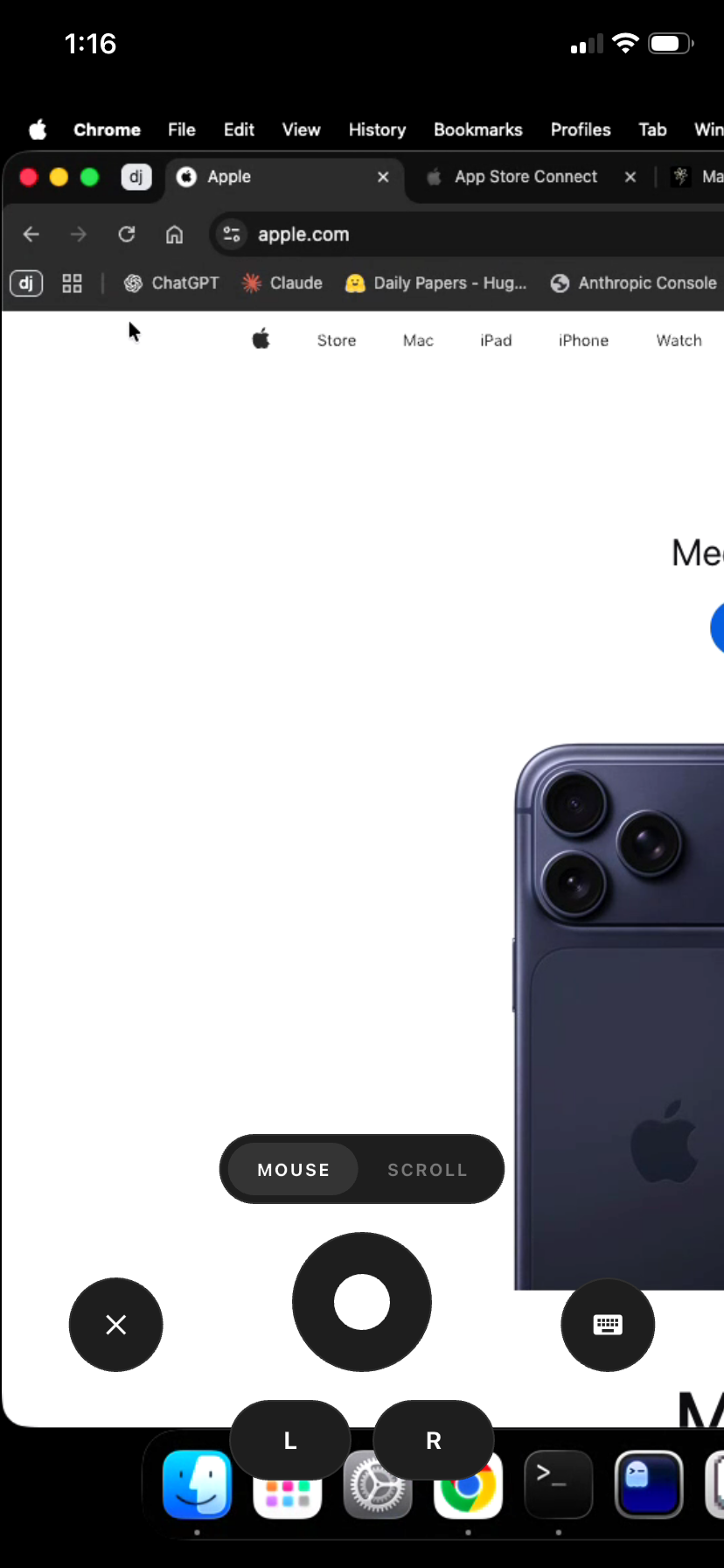
You can also open a real terminal on the same Mac. The connection is end-to-end encrypted and needs no open ports. That makes it easy to confirm a reboot finished and your apps came back.
FileVault and automatic login
With FileVault on, macOS has no automatic login option. The Mac stops at a pre-boot authentication screen. SSH and Screen Sharing don't work until someone enters the password. One Apple Discussions poster reported that an M1 Mac mini shows the option but disabled while FileVault is on.
The fix is to turn FileVault off, then turn on automatic login. Disk encryption is the trade-off, so decide based on where the Mac mini lives.
If you want to keep FileVault, there's a one-time workaround:
sudo fdesetup authrestart -delayminutes -1This skips the FileVault password screen on the next reboot only. The Jamf community thread says it can't bypass OS updates. A manual restart still lands on the FileVault lock screen. Commenters on Hacker News also point to security downsides.
Related Mac mini setup
For the full headless setup, see Mac mini Headless Setup. If you plan to run services on it, read Mac mini Home Server. To connect over SSH once the Mac is logged in, use How to SSH into a Mac.
FAQ
How do I set my Mac mini to automatically log in to a user account?
Open Apple menu > System Settings > Users & Groups. Choose your account from the "Automatically log in as" menu and enter the account password. This is for macOS Ventura 13 or later.
Why is automatic login dimmed on my Mac?
Apple lists two causes. An organization may supervise the Mac with a profile that prohibits automatic login. Or the account may log in with an Apple Account password. FileVault also removes the option, according to Apple Discussions and Jamf community answers.
Does automatic login work with FileVault turned on?
No. With FileVault on, the Mac stops at a pre-boot password screen. Turn FileVault off to use automatic login.
Can I reboot a FileVault Mac without typing the password?
sudo fdesetup authrestart -delayminutes -1 skips the FileVault password screen on the next reboot only. It can't bypass OS updates, and a manual restart still lands on the lock screen.
Related Guides & Comparisons
Try Macky
Connect to your Mac terminal from your iPhone.