Codex Stuck on "Waiting for desktop"? How to Fix Mobile Pairing (2026)
If Codex on your phone shows “Waiting for desktop” and never moves on, your Mac has not registered as an online computer with OpenAI. The cause is usually a setup mismatch, or a proxy or VPN that blocks the Codex remote control service on the Mac.
Here is what the message means, what to check first, and what people on GitHub did when nothing else worked.
What "Waiting for desktop" means
Pairing has two sides. Your phone scans the QR code from the ChatGPT desktop app. Then the desktop app tells OpenAI that your Mac is online and ready. When that second step fails, the phone keeps waiting.
You will usually see the desktop app stuck on “Approve on your device” with the QR code still showing. The phone never shows “Authorize this phone”. In the GitHub reports, the Mac's remote control service stayed on “connecting” and OpenAI's list of connected computers came back empty.
Check these first
These come from OpenAI's own setup guide for Codex on mobile.
- Same account and workspace: Sign in to the same ChatGPT account and the same workspace on your phone and your Mac.
- Desktop app open: The ChatGPT desktop app must be open and signed in. The setting is in Settings > Connections > Control this Mac or PC.
- Mac awake and online: OpenAI says the computer has to stay awake and online. Our caffeinate guide shows how to keep it awake.
- Latest versions: Update the ChatGPT app on your phone and the desktop app on your Mac.
- Workspace settings: On a work or school workspace, an admin may need to allow remote access first.
The common cause: a proxy or VPN
Most reports in GitHub issues #22851 and #25424 involve a proxy or VPN on the Mac. The ChatGPT app works fine through it. The background service that registers your Mac does not pick up the proxy settings. So it can't reach OpenAI, and your Mac never shows up as online.
You may have this problem if you use a proxy app, a company proxy, or a VPN in TUN mode. The logs in those reports showed a local proxy like 127.0.0.1:7890.
Try this first
Turn the proxy or VPN off. Quit the desktop app fully. Open it again and start pairing from scratch with a new QR code. If that works, the proxy was the problem.
Workarounds from users
If you need the proxy on, users in issue #22851 shared these workarounds. OpenAI has not confirmed them, so use them with care.
- Mac: Quit the desktop app fully. Then start it from Terminal with
HTTP_PROXY,HTTPS_PROXYandALL_PROXYset to your proxy address andNO_PROXYset tolocalhost,127.0.0.1. That way the app and its remote control service both use the proxy. - Windows: Add
HTTP_PROXY,HTTPS_PROXYandNO_PROXYas user environment variables. Quit Codex fully and open it again. - Service only: One user restarted only the remote control service with the same proxy variables, then made a new QR code.
How to pair again
- On your Mac, open the ChatGPT desktop app.
- Go to Settings > Connections > Control this Mac or PC and select Set up or Add.
- Approve remote access and finish any verification it asks for.
- On your phone, scan the new QR code and sign in to the same account and workspace.
- Approve the connection on your phone.
- Open Codex in the ChatGPT app and pick your Mac.
Still stuck?
Then it is likely a bug on OpenAI's side. As of October 2026, issues #22851 and #25424 are still open with no fix announced. Follow them for updates or add your details there.
Seeing “Pairing code unavailable” or “Couldn't update remote control availability” instead? See Codex remote control not working on Mac.
Another way to use Codex from your phone
If you run the Codex CLI in your Mac's terminal, there is another path. Macky is a separate app. It does not fix OpenAI's pairing. It opens your Mac's own terminal on your iPhone, so you can run Codex there.
- Codex mode: A dedicated Codex mode on your Mac's real terminal. It does not use OpenAI's remote connection.
- Approve from the key bar: Tap y and Enter to approve. Ctrl+C stops a task. Esc and Tab are there too.
- The whole Mac: A full shell and full remote desktop in one app.
- Lid closed: With Pro, your MacBook can stay closed and you can still use it. Background connect comes with Pro too.
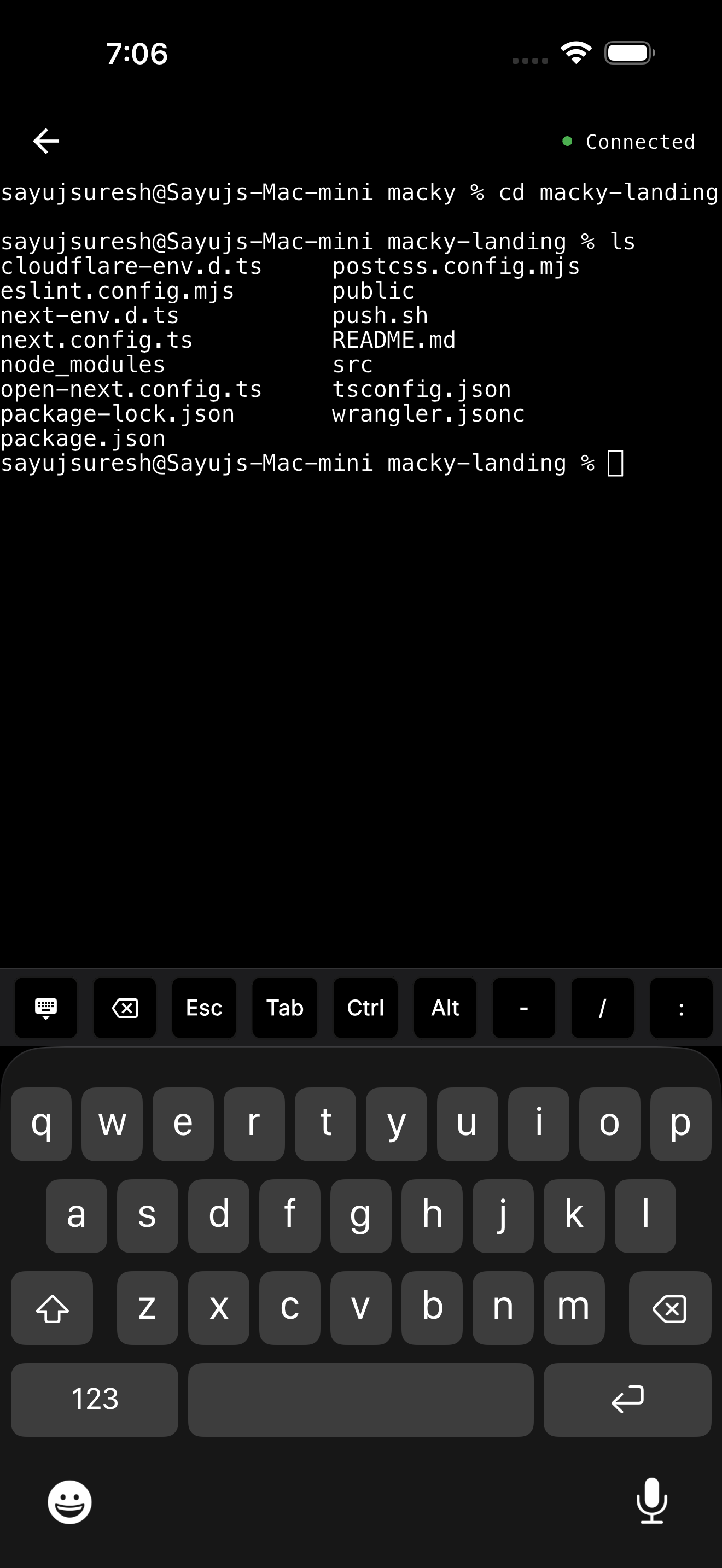
Macky is free to try with 5 minute sessions. Pro is a one-time $29. Get it on the App Store.
New to Codex on your phone? Start with the Codex mobile setup guide. If approvals hang instead, see the “Awaiting approval” fix.
FAQ
What does "Waiting for desktop" mean in Codex?
Your phone scanned the QR code, but your Mac has not registered as online with OpenAI yet. The phone waits until it does.
Why does Codex pairing get stuck on my Mac?
Common causes are a different account or workspace, a Mac that is asleep or offline, old app versions, or a proxy or VPN that the remote control service can't use.
Can a VPN or proxy break Codex mobile pairing?
Yes. GitHub reports show the remote control service ignoring the Mac's proxy settings. Turn the proxy off and pair again to test it.
Do I need the ChatGPT desktop app to use Codex from my phone?
Yes for a connected computer. OpenAI's docs say setup starts in the desktop app on Mac or Windows. Cloud tasks don't need it.
Is there a fix from OpenAI?
Not as of October 2026. GitHub issues #22851 and #25424 are still open with no fix listed.
Can I use Codex from my iPhone without pairing?
You can run the Codex CLI on your Mac and open your Mac's terminal on your iPhone with an app like Macky. It does not use OpenAI's remote connection.
Related Guides & Comparisons
Try Macky
Connect to your Mac terminal from your iPhone.